Create your first learning assistant
You need: a creator account on your institution’s LAMB installation and an available model. Screenshots show the English LAMB 0.8 interface captured on 17 October 2026 with synthetic content. Your organization may offer different models or controls.
1. Open the creation form
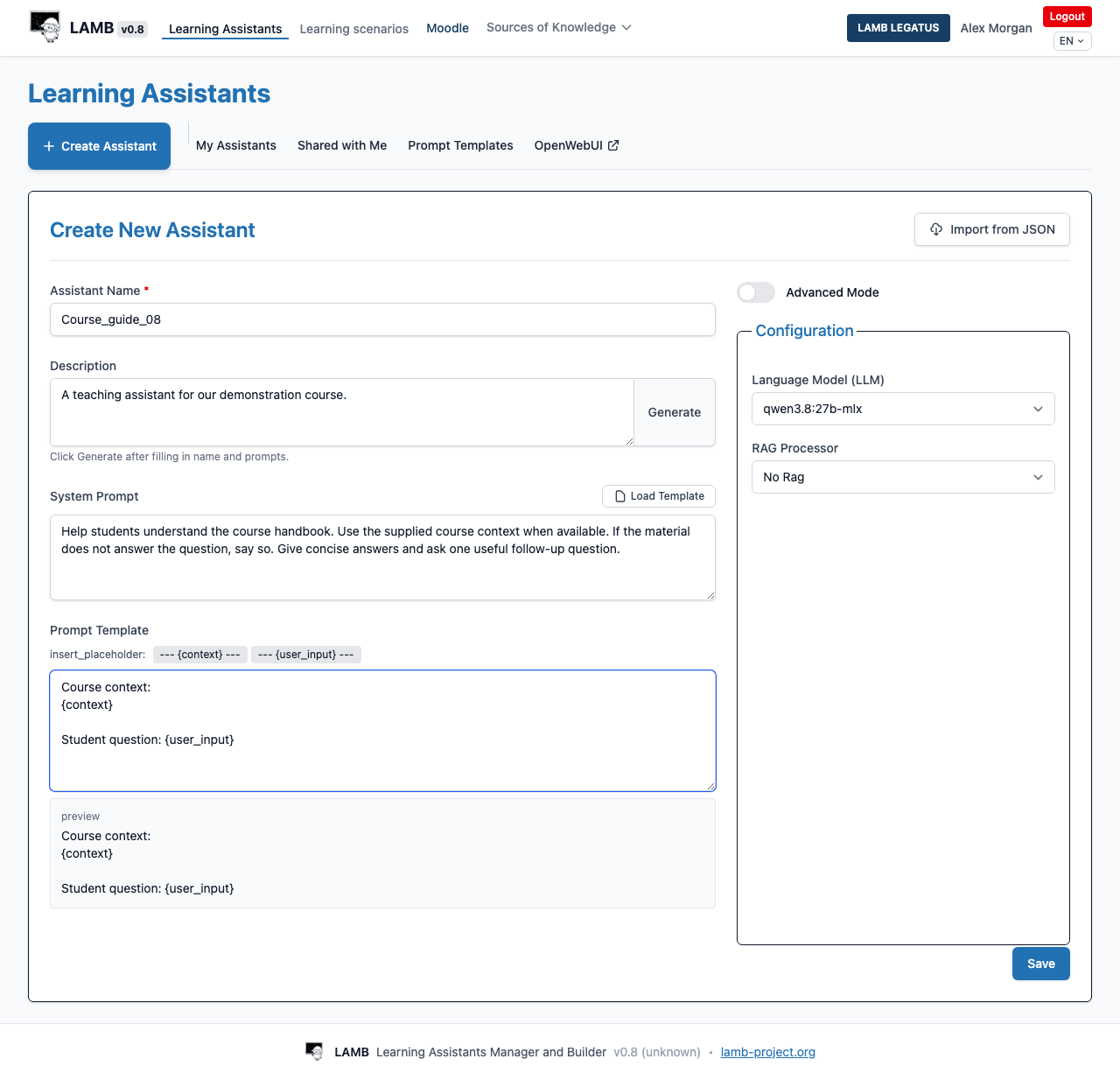
Open Learning Assistants, then Create Assistant. Give the assistant a short, recognizable name and a description of the teaching task. Use the name rules displayed by your installation.
In System Prompt, describe the assistant’s role, the task it should help with and what it should do when it lacks information. For example:
Help students understand the course handbook. Point them to relevant material and ask a question that helps them explain it themselves. If the material does not answer the question, say so.
2. Choose a model and a source approach
Choose from the Language Model (LLM) options your organization provides. A model name in a screenshot is an example, not a requirement.
For a first configuration without documents, select No Rag and use a question template appropriate to that mode. If the learning task needs course materials, follow the knowledge-base guide and connect a source before judging the assistant’s course knowledge.
The Prompt Template controls the question and source context sent to the model. For the documented knowledge-base path, it needs both {context} and {user_input}. These are user-visible configuration fields, not a training process.
In 0.8, the RAG processor is chosen when the assistant is created and is locked during later edits. Create a separate assistant if you want to switch from No Rag to a knowledge-base mode.
3. Save and verify
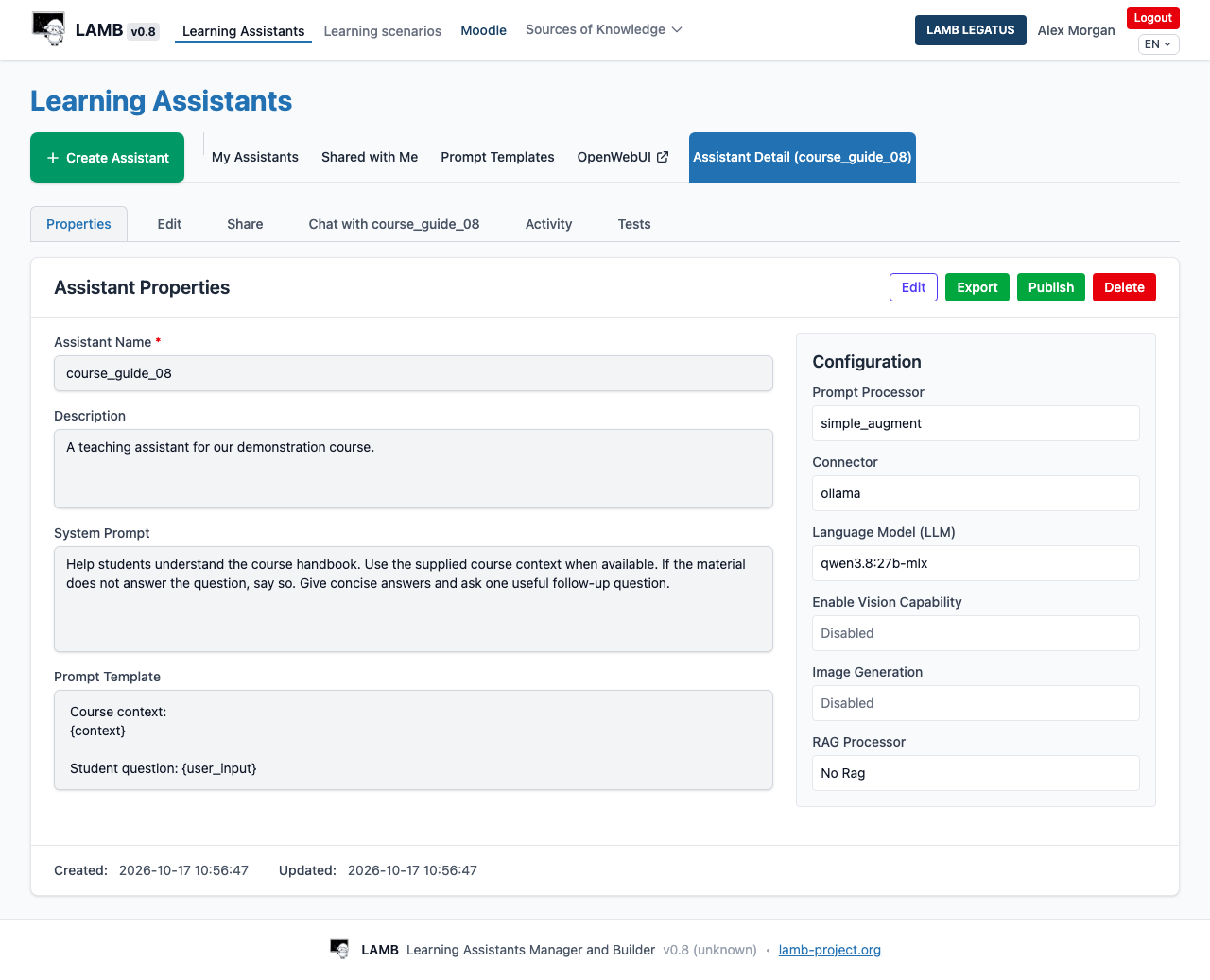
Scroll to Save. After saving, open Properties and check the saved name, model, instructions and source selection. A filled form alone does not mean the configuration has been saved.
4. Try the assistant
Open Chat with [assistant name]. Ask a typical student question, then one outside the assistant’s intended scope. Read both answers. This chat tests the learning assistant; the separate LAMB LEGATUS conversation serves a different purpose.
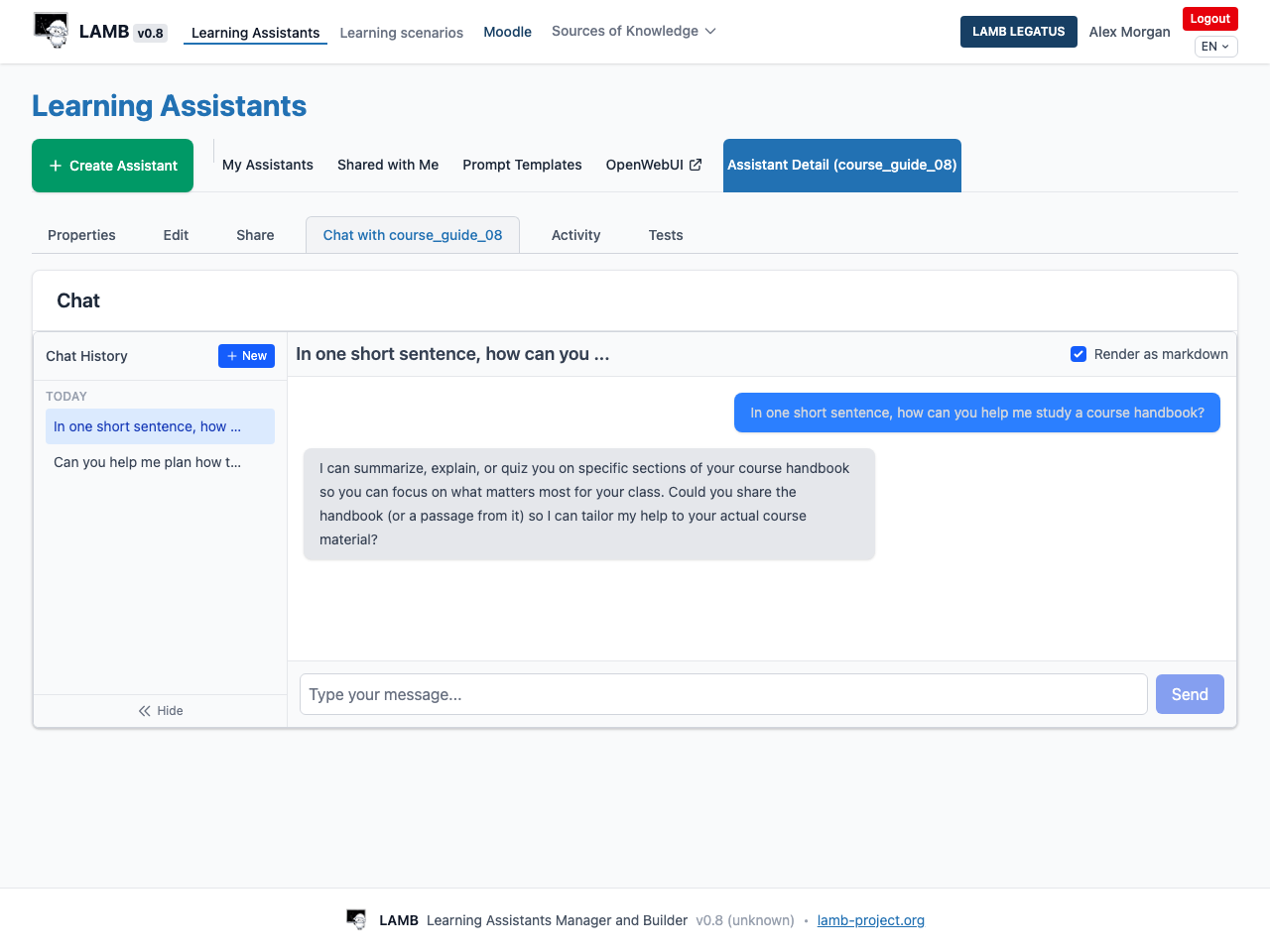
Expected result: the saved assistant is available to you and produces a response through its configured model. If a model request fails, check the error and contact your administrator; do not assume creating the assistant also provisions provider access.
Next: add course materials, then record repeatable tests. Publication for students is a separate step.