Add and check your course materials
This guide prepares sources for retrieval-augmented generation (RAG): retrieving relevant course material to supply context for an assistant’s answers.
You need: permission to use the material, a creator account and a supported ingestion service. Start with a small, non-sensitive document whose contents you know. The illustrations use a synthetic course note.
1. Create or open a knowledge base
Open Sources of Knowledge → Knowledge Bases. Select Create Knowledge Base, enter its name and description, then confirm. For an existing base, open its detail view instead.
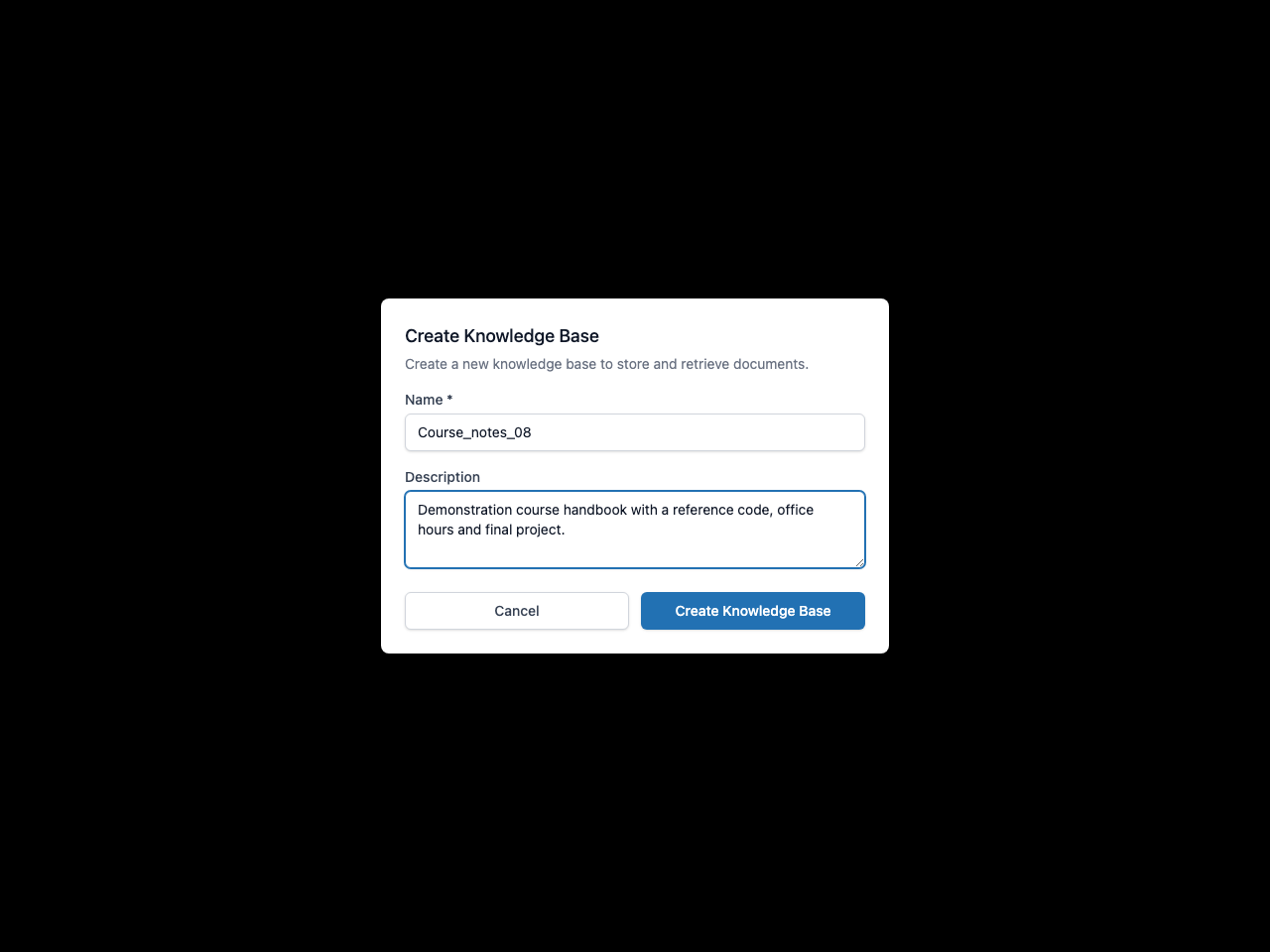
2. Choose and upload the file
Open Ingest Content. Under Select File, use Choose File and select the document on your computer. Check its filename before uploading. The Files tab is where you inspect processing state, not the upload form in this interface.
Choose an available Ingestion Plugin suitable for the file. The documented interface uses simple_ingest for plain text or Markdown and markitdown_ingest for supported PDF/Office conversion when that plugin is installed. A file extension alone does not establish successful support.
Keep the initial parameters unless you have a reason to change them, then click Upload File. If a request times out, inspect the saved state before submitting the same file again.
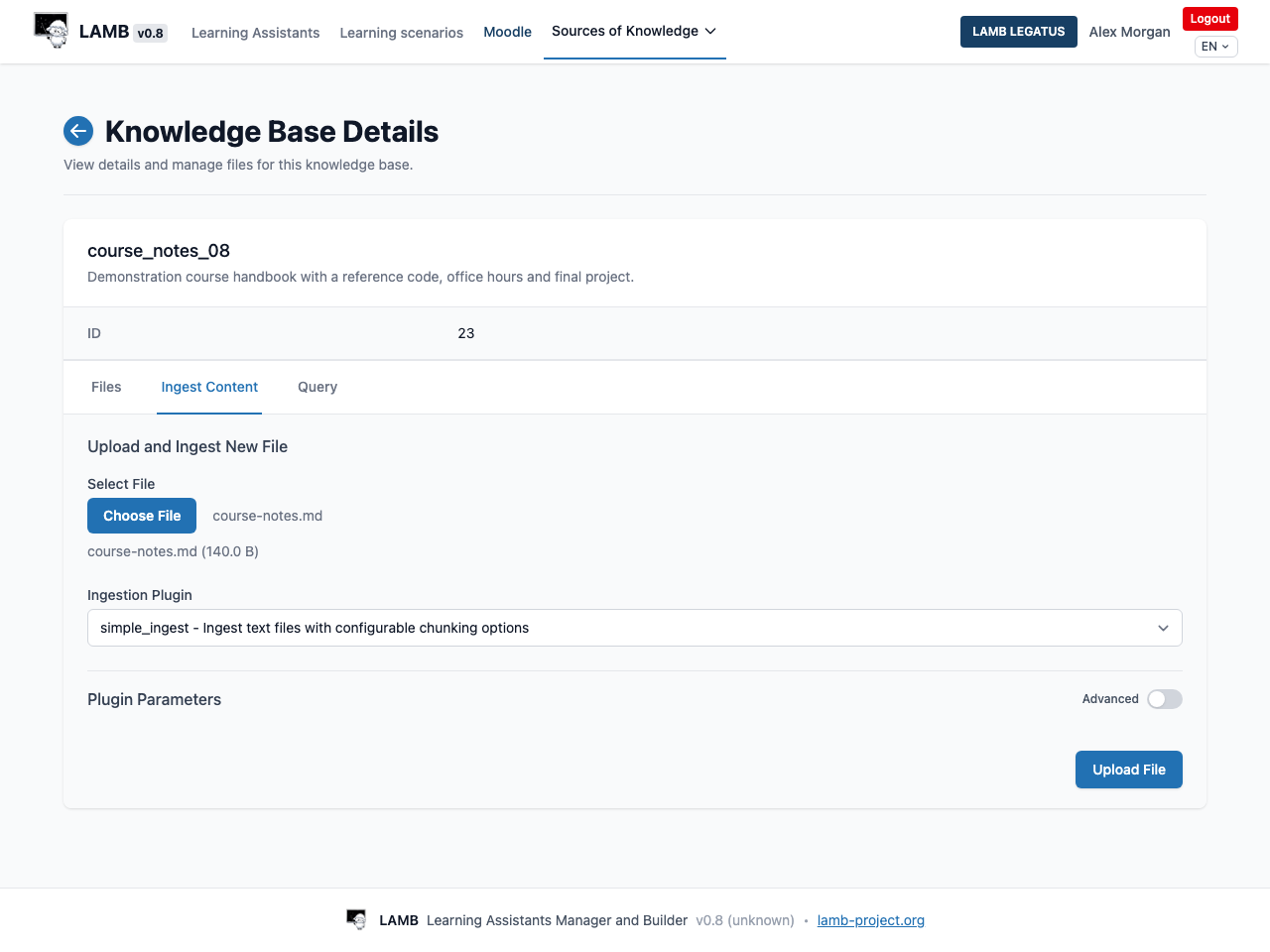
3. Check processing
Open Files and use Refresh Status. A row marked processing is not ready yet. Wait for completion; inspect any error rather than treating a successful upload as successful ingestion.
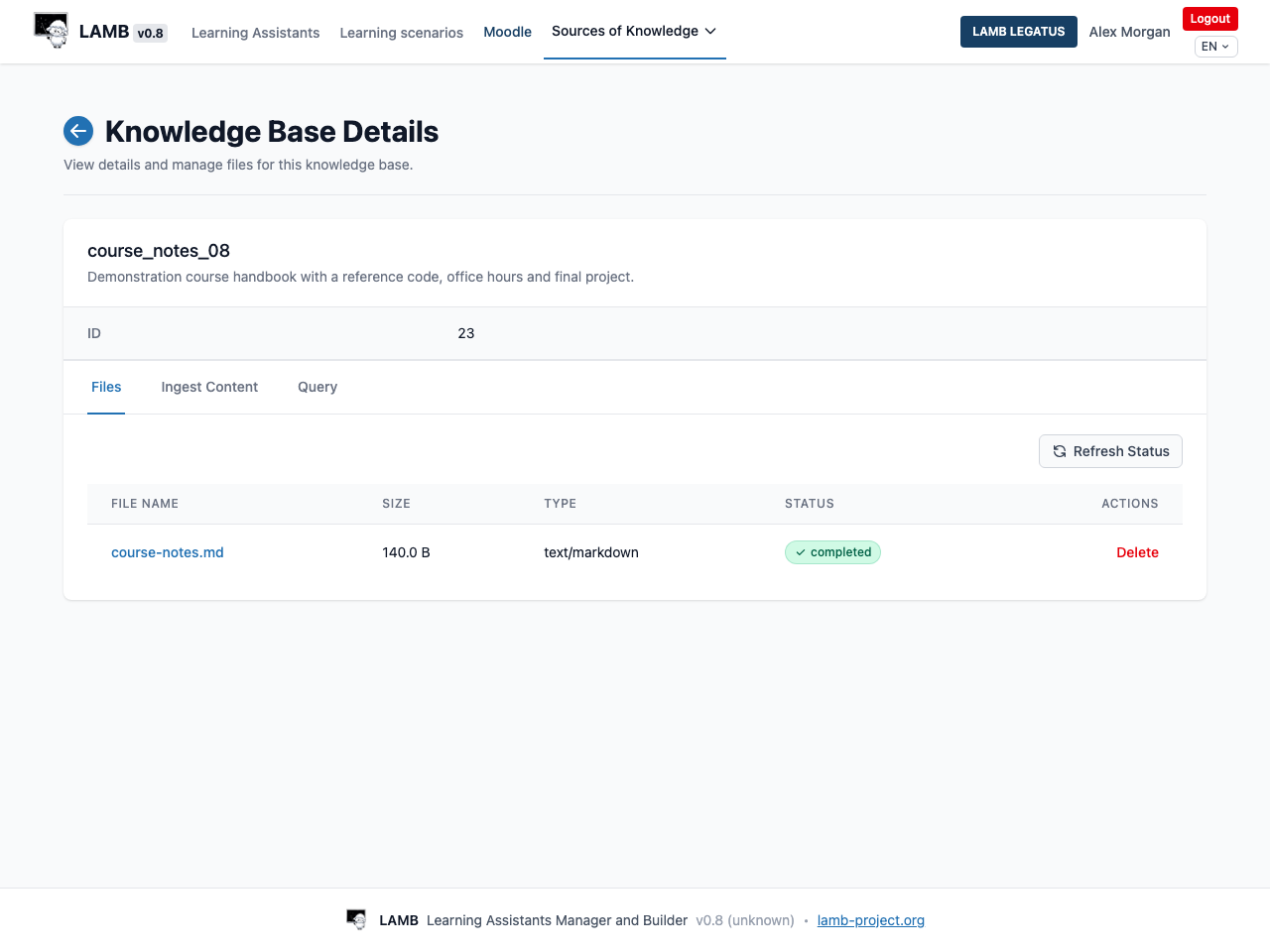
4. Ask a question only this document can answer
Open Query. Ask about a distinctive fact in the uploaded document and click Submit Query. Check the returned passage and source identity. In the demonstration, the note contains the reference code CORAL-19 and says office hours are Tuesday.
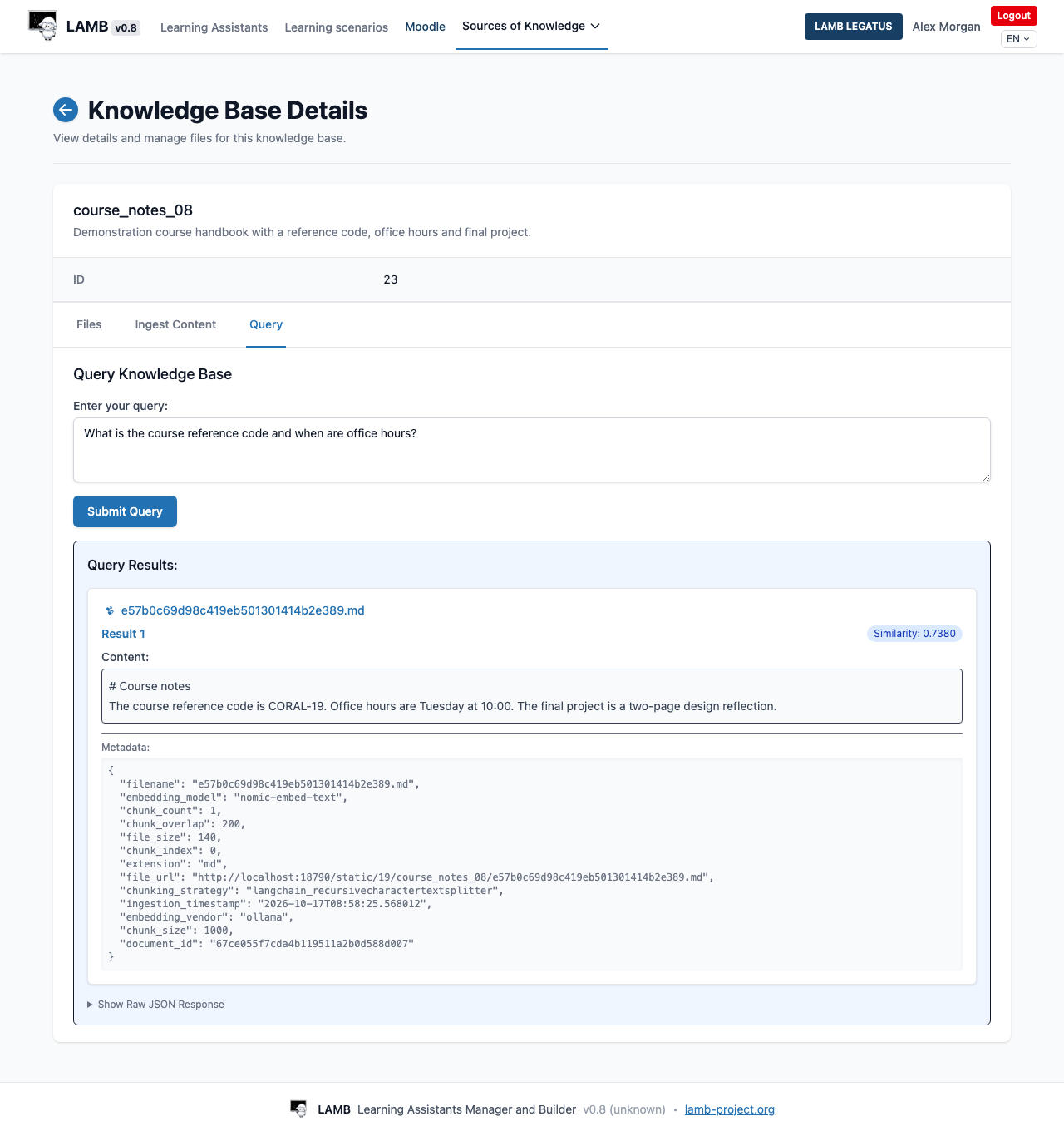
5. Connect the source to your assistant
Open Create Assistant, choose Simple Rag and select the intended knowledge base under RAG Options. Check that the prompt template includes {context} and {user_input}, then save. The example creates a new assistant named Course_RAG_08 and connects course_notes_08.
Choose the RAG processor at creation time. In 0.8 this selector is disabled when editing a saved assistant. If your first assistant uses No Rag, create a new assistant for this knowledge-base workflow. For an assistant already using Simple Rag, use Edit to review its selected knowledge bases.
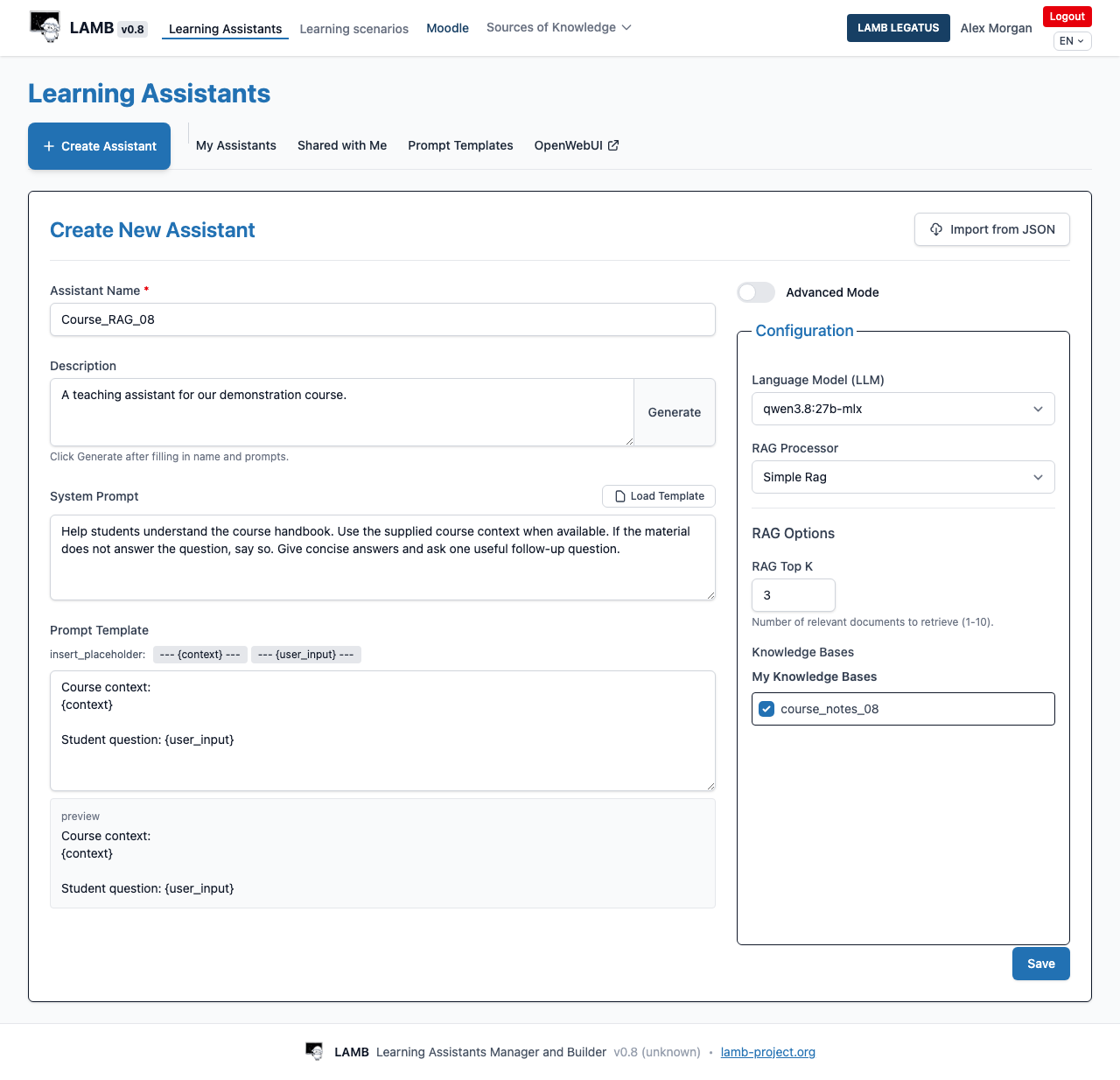
Expected result: a query retrieves the intended source, and the saved assistant points to that source. Test the assistant’s actual answers next. Retrieved context can improve grounding, but it does not guarantee a correct answer or citation.
If nothing is returned: check ingestion state, the selected knowledge base and whether the question actually matches the source. Do not silently replace the material with invented information.