Explore a LAMB-connected learning tool
For application developers and teaching-innovation teams. This walkthrough shows the public lamb-tool-template, recaptured on 17 October 2026, connected to LAMB 0.8. It uses a demonstration LMS, real assistant responses and synthetic participants. These are not screenshots of a production Moodle course.
Before you begin
You need a supporting LAMB installation, permission to create a personal creator API key, an assistant published and available to that account, and a local tool installation following the template’s README. The demonstrated template uses LTI 1.1 and Basic Outcomes grade return.
Have your administrator enable creator API access where needed. Keep the API key on the tool server and use a separate key for each deployment. Students do not need this key. Pin the template revision and test it against your LAMB deployment.
1. Configure the tool
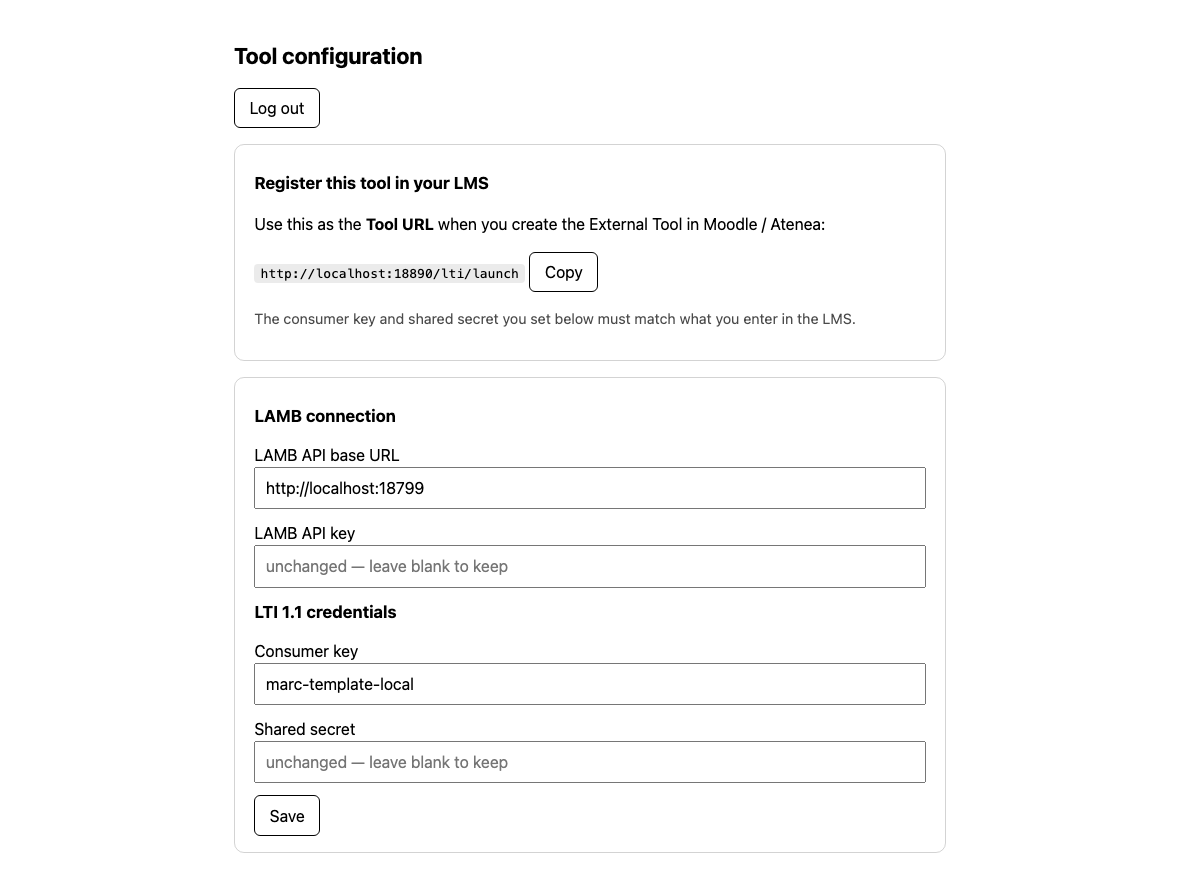
Run the template using the public README for the checked revision. Open its administration page and supply the LAMB address, creator key and the tool’s LMS credentials. The template expects the LAMB root address and appends its API paths itself; follow its configuration contract rather than copying a URL from another API client.
2. Set up an activity as an instructor
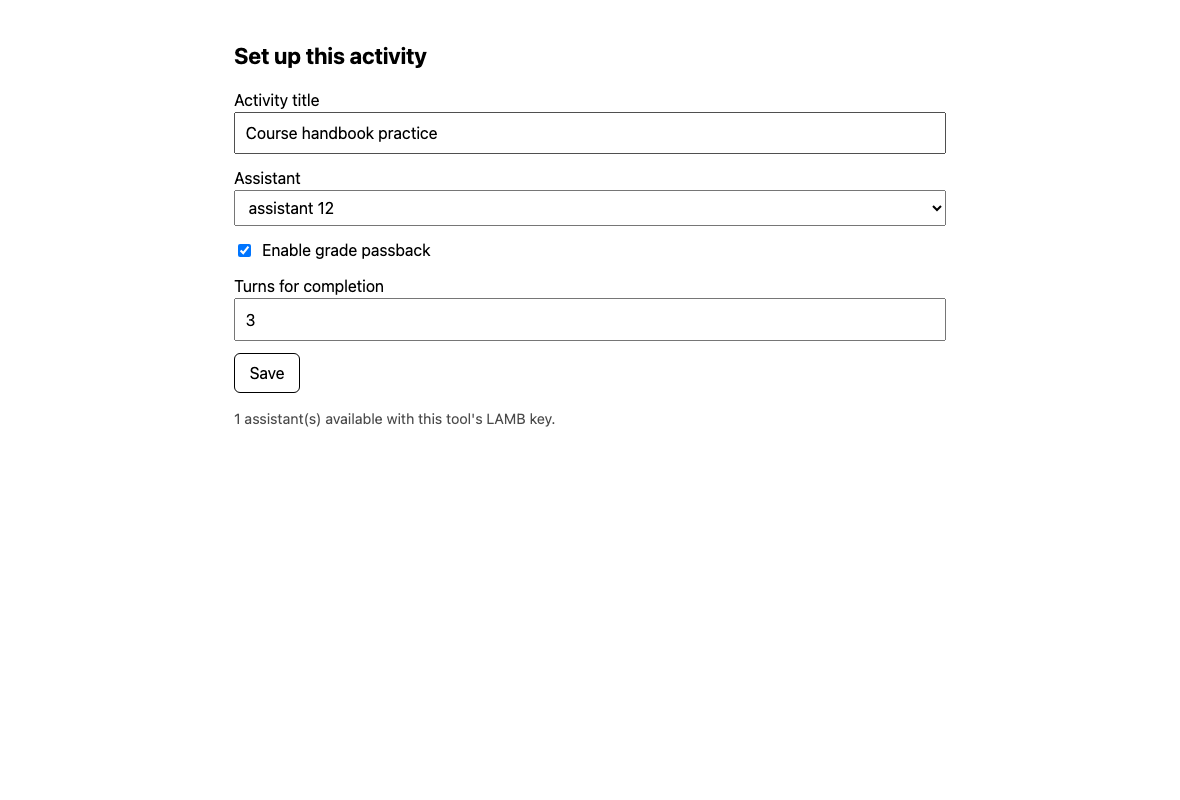
Register the local tool with the LAMB LTI Test Tool, then launch it as an instructor from a demonstration course. Choose the available published assistant. For the grade-return exercise below, select Enable grade passback, then save the activity settings.
3. Launch as a learner
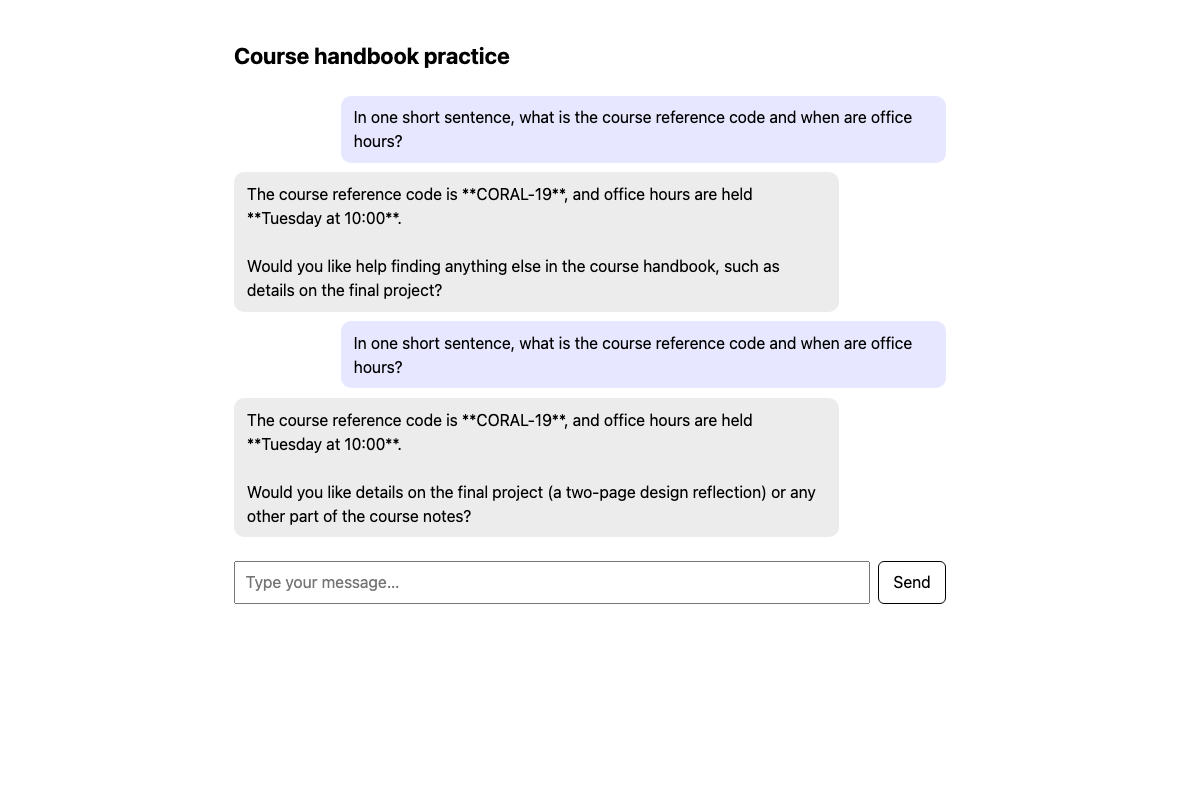
Use the test LMS’s learner launch. Ask the assistant a question and check its response. The language of the example comes from its assistant configuration; your own activity can use a different language.
4. Review a result before sending it
Return as an instructor, inspect the activity and enter a deliberate test grade. Send it through the tool’s grade-return action, then check the value in the test LMS.
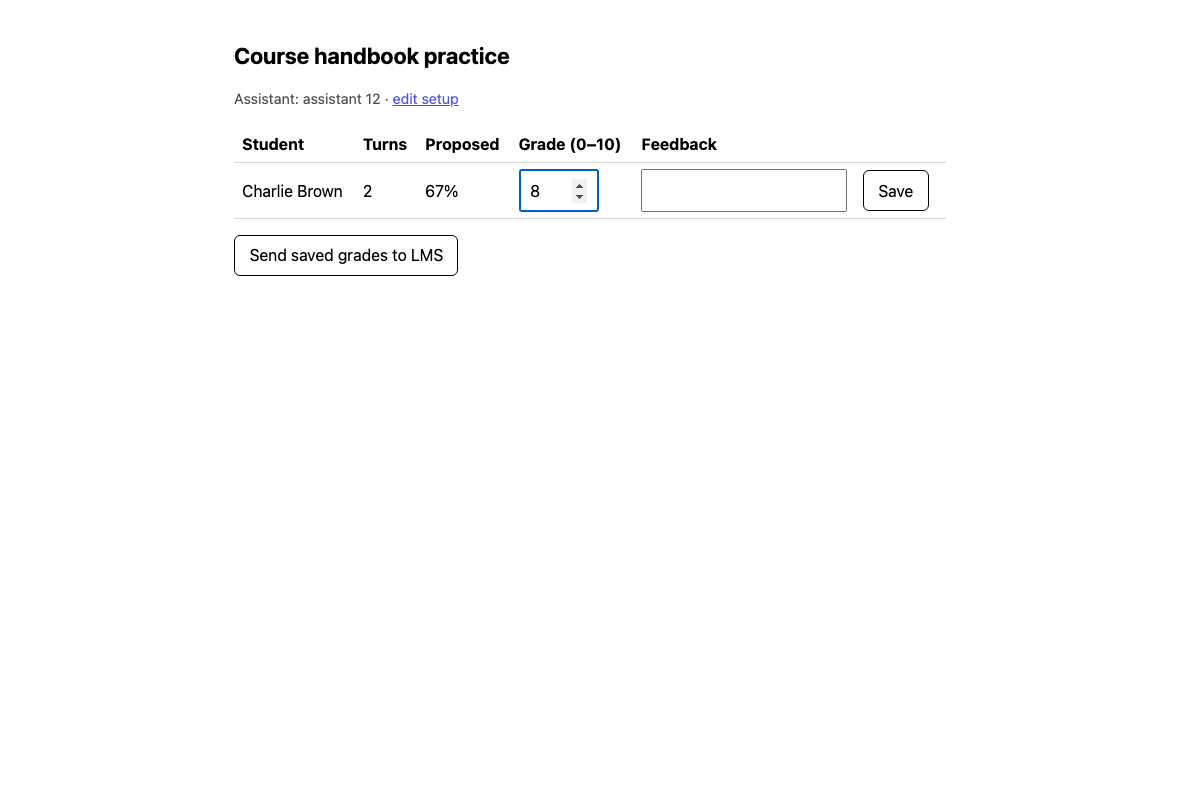
Known limitation of this snapshot: a saved normalized grade such as 0.8 reloads directly into an input labelled 0–10. Do not reuse the saved display as though it were already on the 0–10 scale. The display conversion must be corrected and save → reload → save tested before classroom grading. This example is not a production-readiness claim.
5. Evaluate the complete result
Check learner/instructor separation, authorized assistant access, the actual answer, and the grade recorded by the LMS. A response proves connectivity for that case, not educational quality. A local mock-LMS pass is not acceptance on your institution’s LMS.
For a real deployment, agree HTTPS hosting, supported LTI settings, credential handling, backups and support with your institutional team. Use public installation and interface instructions from the chosen revision. This guide intentionally focuses on using the tool rather than reproducing LAMB’s internal architecture.