Give students model access under your rules
For organization admins and teachers. An LLM access activity gives each student of a course a personal key to the organization’s models, for their own tools: VS Code with Continue or Cline, Aider, Claude Code or their own code. The organization admin sets the rules; the teacher sets the limits and the timetable for the course, inside those rules. The last mile for your AI explains the idea.
Screenshots come from an automated run on LAMB 0.8 on 16 October 2026, with a synthetic organization, course and students, a local model and an LTI test tool standing in for Moodle. Keys are masked.
Before you start
The system administrator has deployed the gateway that ships with LAMB 0.8 as an optional add-on, and has connected your organization to it. The admin screens call the gateway Proxy. On the LLM access tab, the Proxy line says connected, reachable and Models the proxy serves lists its models. If it says “not connected”, ask your system administrator.
Teachers need a LAMB account in the organization before they can set up a LAMB activity in a course: they open the organization’s LAMB Creator link from the LMS once. Choose your LMS entry path explains the links.
Organization admin: set the rules
Open Org Admin → Settings → LLM access.
Tick Teachers may create LLM access activities. Teachers see the LLM access type only when this box is ticked, the proxy is connected and at least one model is ticked (step 6).
Choose how tokens are limited:
- Shared pool per activity: each activity has one pot of tokens for all its students.
- Allowance per student: each student’s key has a limit per time slot, in total, or both.
- Both: a pool caps the activity, and each student also has a personal limit.
In 0.8 only a pool is a firm ceiling: a student who replaces their key starts a new total. Choose a policy with a pool when you need one.
Set the Default allowance per teacher: the most one teacher may commit across all their LLM access activities. A pool counts in full when the activity is saved; without a pool, each student’s total counts when the student takes a key; per-slot limits alone commit nothing. The allowance limits what a teacher commits, not what students spend. Leave it empty for no limit.
Add Exceptions for individual teachers with the email the LMS sends for that teacher.
Tick the Models teachers may offer.
Choose the Time slot for per-student limits and the default Time zone of timetables for new activities. Slots follow the clock (10 minutes means :00, :10, :20 …) and refill within seconds of the start of each. Use 10, 20, 30 or 60 minutes: with 5 or 15, the current-slot figures on the pages are wrong in 0.8, although the gateway enforces the right limit. Choose the slot before teachers start; keys already issued keep the one they were issued with.
Save. New activities follow the new rules at once. Existing activities keep their models, slot length and time zone, and are checked against the new policy, only when their teacher saves them again; the screen says how many there are.
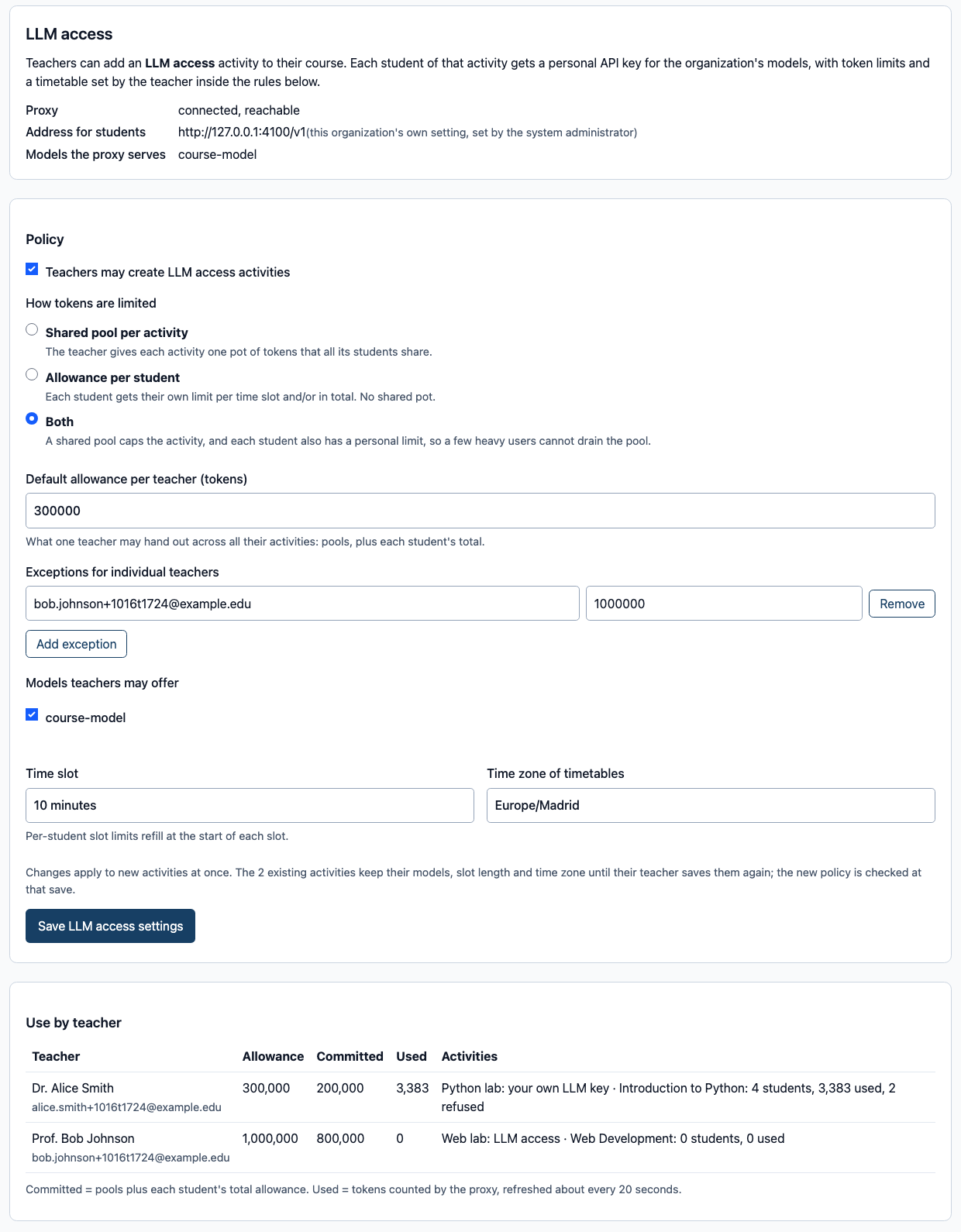
Follow the use: the Use by teacher table at the bottom shows each teacher’s allowance, what they have committed, the tokens actually used and their activities. Used figures arrive 20 to 40 seconds after the requests; reload to see newer numbers.
Teacher: add the activity
- In your course, add a LAMB activity link (an external tool) and open it.
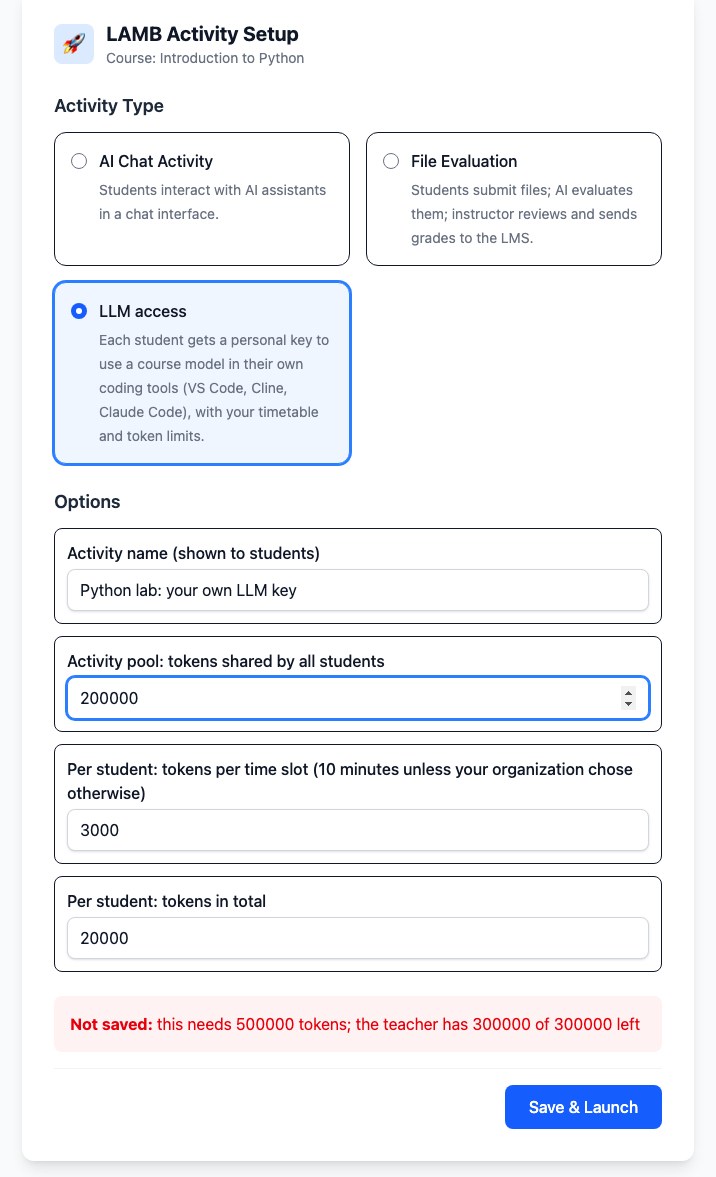
- Choose LLM access as the activity type and give it a name students will see.
- Fill the limits your organization’s policy asks for: Activity pool, Per student: tokens per time slot and Per student: tokens in total. Leave a field empty for no limit; 0 is refused.
- Choose Save & Launch. LAMB checks the limits against the policy and the pool against your allowance. If they do not fit, nothing is created: the reason appears above the button, with your entries kept. Without a pool, each student’s total is checked when the student takes a key, so a refusal can come later, on the student’s page.
Teacher: manage the activity
Each time you open the activity you land on its management page.
- Open / Closed shows whether keys work now. Follow timetable is the default; Open now and Close now override it. LAMB applies the change within about 10 seconds.
- Change limits and timetable: the models, open all the time or on chosen days and hours, From and Until dates, the time zone, and the limits. Students keep their keys; new models and limits reach them at once, timetable changes within about 10 seconds. A later Until date does not reach keys already taken: students replace their key to get it.
- Students: each key’s tokens in the current slot, in total, and refused requests. Block stops a student’s current key within about 10 seconds and Unblock brings it back; Revoke deletes it. In 0.8 neither keeps a student out: a blocked student can replace the key, and a revoked one can take a new key. To stop access, close the activity.
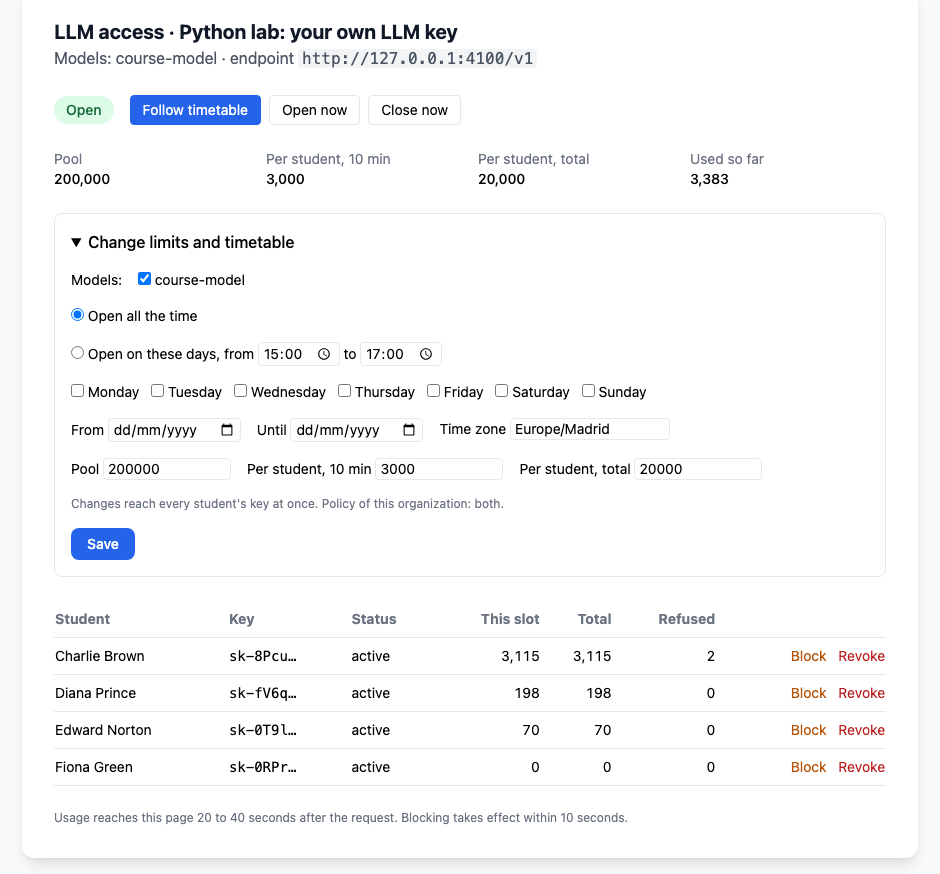
The request that crosses a limit still completes and is counted in full; the next one is refused. That is why a student can show slightly more than the limit.
Student: take a key
- Open the activity from the course.
- Read Before you take a key: what is recorded (time, model and tokens of each request, linked to you, so your teacher can see your usage), that the gateway does not store the text of prompts or answers, and what an outside provider receives. Tick I have read this and choose Get my key.
- Copy the key at once: it is shown only once, with the settings for OpenAI-compatible tools, Claude Code and a terminal test.
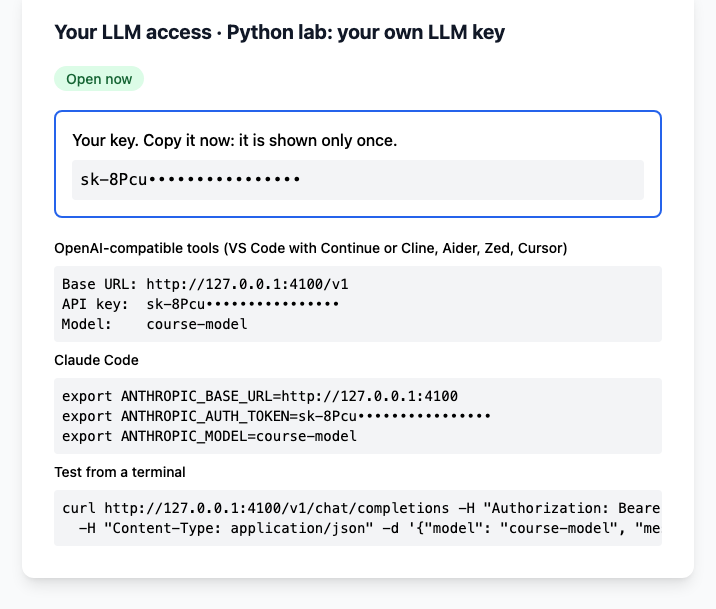
On later visits the page shows the key’s status and the student’s use in the current slot and in total. Replace my key stops the old key at once and issues a new one.
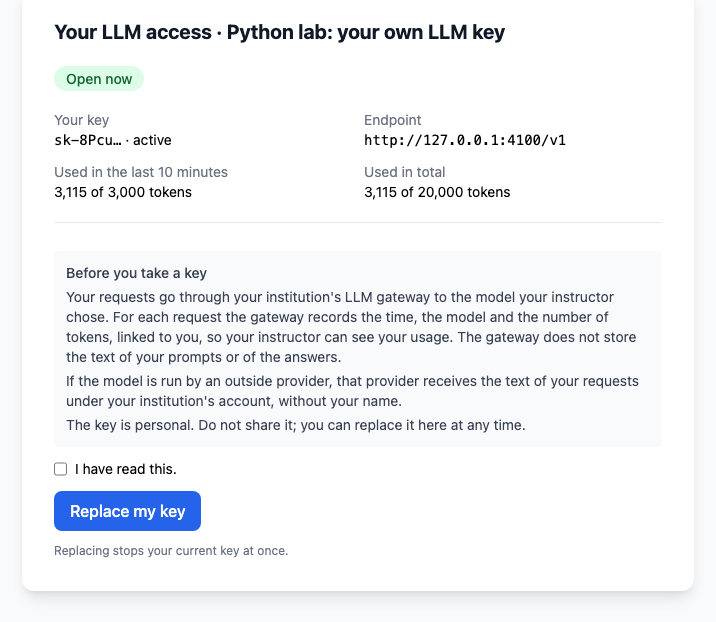
When a limit is reached, the student’s tool gets an error that says which one, in tokens: the slot limit (wait for the next slot), the total allowance or the activity’s shared pool (ask the teacher). A closed activity or a blocked key is refused as well.
Limits of this edition
- These rules apply to LLM access activities. Chat and file-evaluation activities use the organization’s model provider and are not counted against teacher allowances.
- Only an activity pool is a firm ceiling: replacing a key starts a new per-student total, and raising the per-student total later is not checked against the teacher’s allowance again.
- Block and Revoke do not keep a student out; closing the activity does. A student who leaves the course keeps their key until it is revoked or the activity closes.
- Switching LLM access off for the organization stops new activities from being set up and teachers from changing existing ones. Existing activities still open, and their students can still take and replace keys: teachers choose Close now to stop them.
- A later Until date does not extend keys already taken.
- With 5- or 15-minute slots, the current-slot figures on the pages are wrong; the gateway enforces the right limit.