Connect LAMB and Moodle
For LMS administrators and teachers. This guide has two independent parts. Part 1 puts LAMB activities and assistants into a Moodle course. Part 2 lets a teacher connect their own Moodle account so that LAMB LEGATUS, LAMB’s built-in agent for teachers, can read that teacher’s courses and import course materials into a knowledge base.
LAMB needs no Moodle plugin. Part 1 uses Moodle’s standard External tool with LTI 1.1. Part 2 uses Moodle’s standard web services for the mobile app. Nothing is installed on the Moodle server: the only Moodle changes are the standard administration settings described below.
Screenshots show LAMB 0.8 and a demonstration Moodle 4.5 site, captured on 17 October 2026 with synthetic courses and accounts. Addresses such as localhost are local test values: use your institution’s public addresses.
Part 1. LAMB in a Moodle course (LTI 1.1)
LAMB offers three LTI entry paths. Each has its own launch URL and credentials, and they are not interchangeable. Choose your LMS entry path explains when to use each one.
| Entry path | Tool URL ends in | Consumer key | Shared secret |
|---|---|---|---|
| LAMB activity tool (chat, file evaluation, LLM access) | /lamb/v1/lti/launch | The installation’s key, shown in LAMB’s LTI Settings | Set in the same LTI Settings |
| One published assistant | /lamb/v1/lti_users/lti | The assistant’s own key, shown in its LTI Publish Details | One secret for all published assistants, held by the server administrator |
| Educators open LAMB Creator | /lamb/v1/lti_creator/launch | The organization’s key | The organization’s secret |
LAMB checks every launch signature against the address the launch arrived at. The Tool URL in Moodle must therefore be your LAMB server’s exact public address, with the same https scheme and host name your users see.
The steps below set up the LAMB activity tool once for the whole Moodle site. Teachers then add it to any course.
Set up the tool (LAMB and Moodle administrators)
- In LAMB, a system administrator chooses Admin in the top bar, then the LTI Settings tab. Under LMS Setup Information it shows the Launch URL and Consumer Key, each with a Copy button. Type the secret under OAuth Shared Secret and choose Save LTI Configuration. When you change the consumer key, type the shared secret again in the same save.
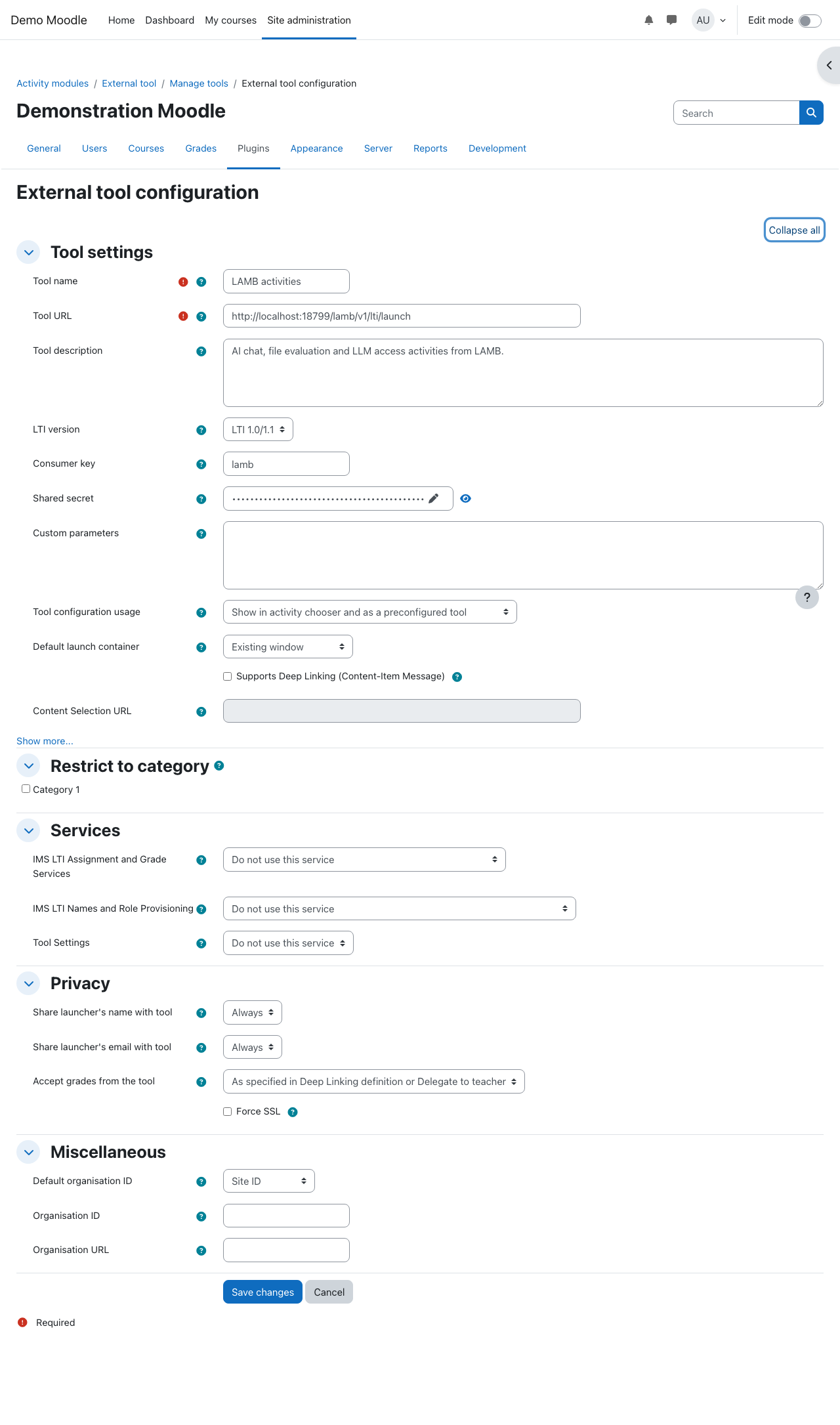
- In Moodle, go to Site administration > Plugins > Activity modules > External tool > Manage tools and follow configure a tool manually.
- Fill in Tool name (for example “LAMB activities”), Tool URL (the Launch URL from step 1), LTI version “LTI 1.0/1.1”, Consumer key and Shared secret.
- Set Tool configuration usage to Show in activity chooser and as a preconfigured tool so teachers can find it in their course.
- Choose a Default launch container. The demonstration uses Existing window. Test the container you choose with a teacher and a student account before courses use it.
- Under Privacy:
- Share launcher’s email with tool: Always. On a teacher’s first launch, LAMB finds the teacher’s LAMB account by this email. Without it, a teacher whose LAMB account uses an ordinary email and password sees a page asking them to contact the administrator.
- Share launcher’s name with tool: Always. LAMB uses it as the display name.
- Accept grades from the tool. Needed only for File Evaluation, which sends grades back to Moodle when the teacher syncs them. Choose Always, or As specified in Deep Linking definition or Delegate to teacher to let each teacher decide in the activity. Moodle sends the grade return details only when this is on.
- Leave the Services section as it is and Save changes.
Add an activity to a course (teacher)
- In the Moodle course, turn on Edit mode and choose Add an activity or resource. The tool appears under the name the administrator gave it.
- Give the activity a name. For File Evaluation, if the administrator chose the delegate option, open the Grade section and tick Allow LAMB activities to add grades in the gradebook (Moodle shows the tool’s name here). Then choose Save and display.
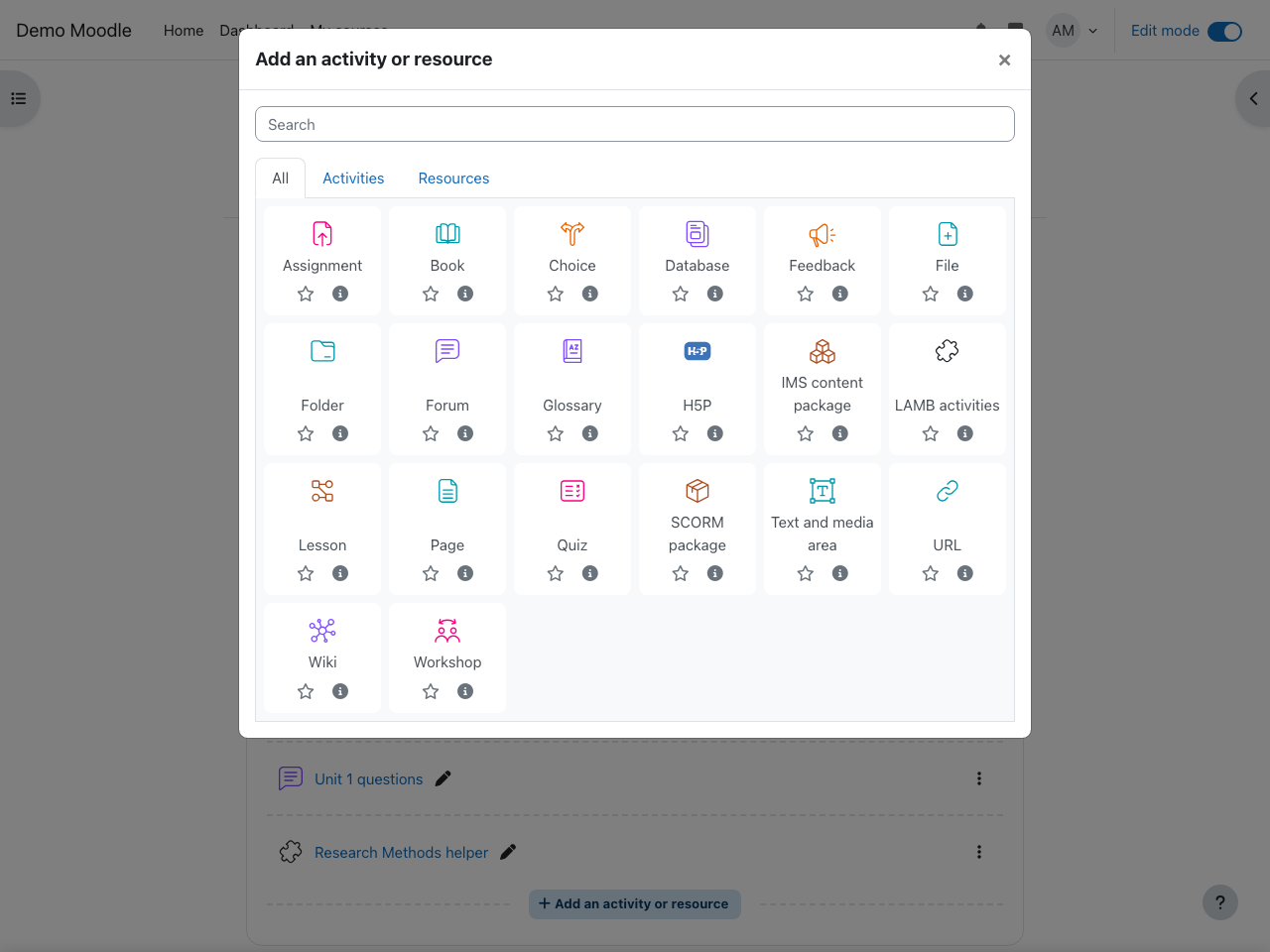
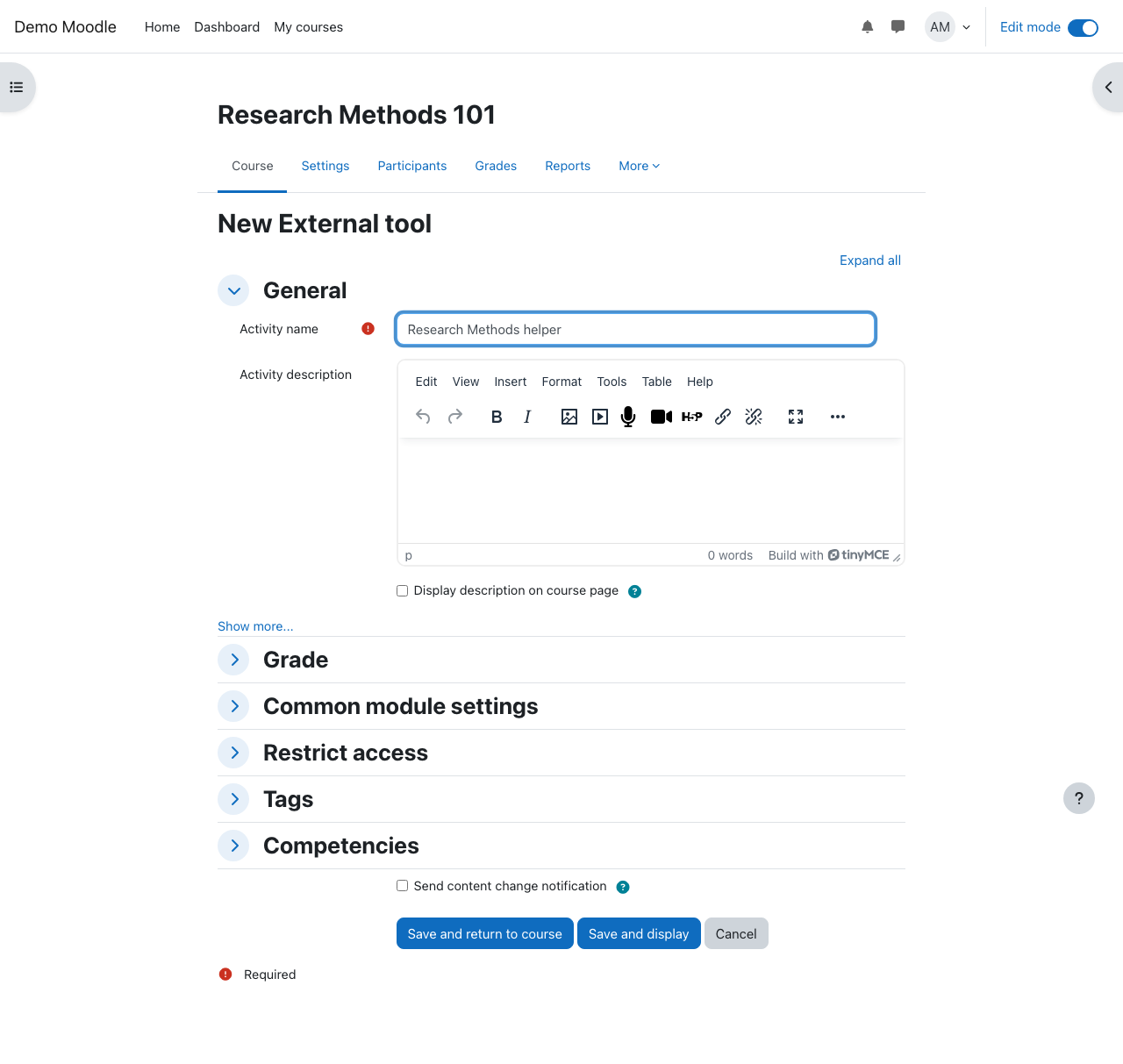
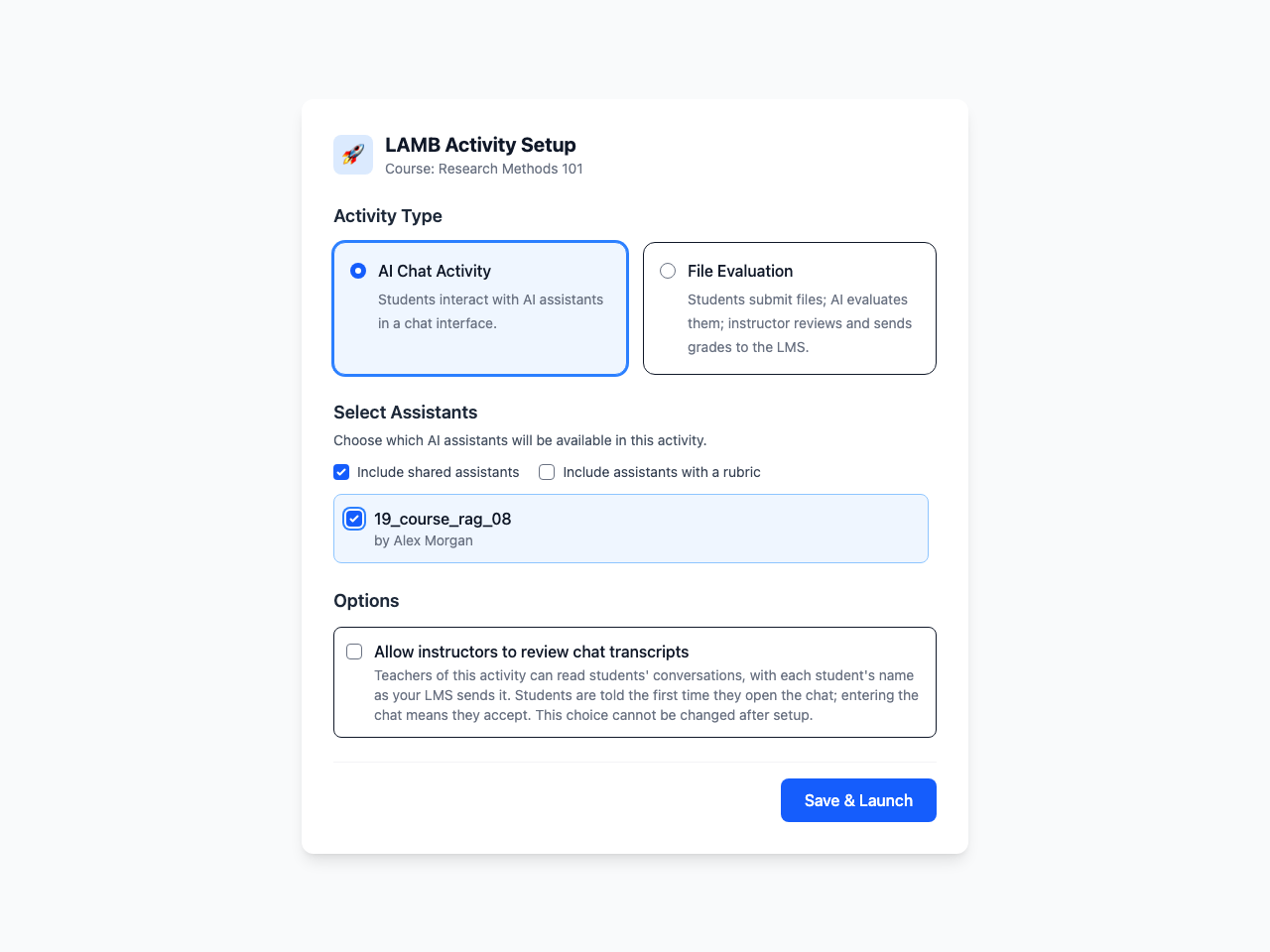
- The first launch by a teacher opens LAMB Activity Setup for that course. Choose the activity type: AI Chat Activity or File Evaluation. LLM access also appears when your organization has set up model access for learners.
- Select the assistants learners can use. Only published assistants appear here, so publish them in LAMB first. For File Evaluation, each selected assistant needs a rubric (RAG processor “Rubric RAG”, chosen when the assistant is created), and the activity needs a title and a deadline.
- Decide on Allow instructors to review chat transcripts. If you turn it on, teachers can read students’ conversations with each student’s name, and students are told the first time they open the chat. This choice cannot be changed after setup.
- Choose Save & Launch. You arrive at the activity’s instructor view, with its students, chats, assistants and access log.
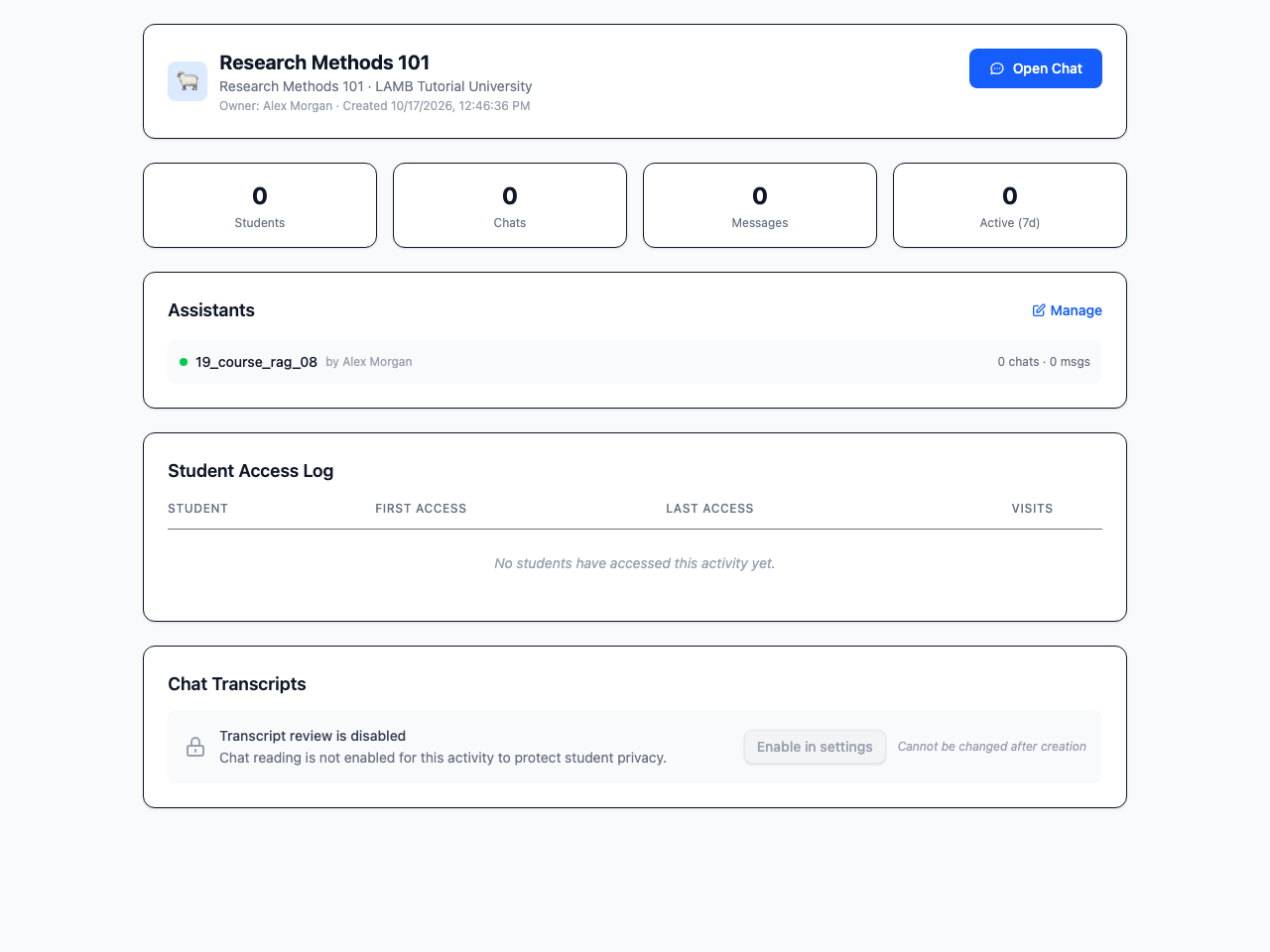
- Test as a student with a demonstration account. Before a teacher completes setup, a student sees a waiting page. After setup, the student opens the activity with the assistants the teacher selected. For File Evaluation, grades do not reach Moodle on their own: after reviewing them, choose Sync Grades to Moodle in the instructor view, then check that the grade arrives in the Moodle gradebook.
A teacher must already have a LAMB account to set up an activity. LAMB finds it by the email Moodle sends, or by the account created when the teacher first used Creator access from Moodle.
The other two paths in brief
- One published assistant. Publish the assistant in LAMB. Its detail view then shows LTI Publish Details with the Tool URL and the consumer key. The secret field reads “ASK ADMIN FOR THE SECRET”: the server administrator sets one secret for all published assistants and should replace any default with their own. In Moodle, email sharing is not needed; share the name so learners appear with a readable name.
- Educators open Creator. An organization administrator opens Org Admin > Settings > LTI Creator, ticks Enable LTI Creator Access and sets the consumer key and secret. The key must be unique across organizations. New users arrive as members of that organization. Email sharing is not needed; share the name for a readable display name.
Expected result: a teacher adds the LAMB tool from the activity chooser, completes setup on the first launch and reaches the instructor view, and a demonstration student can open the configured activity.
Part 2. Connect a teacher’s Moodle account for LAMB LEGATUS
With this connection, LAMB LEGATUS can read the courses a teacher teaches and, after the teacher approves, import course materials into a LAMB knowledge base. Each teacher connects their own account. LAMB can do only what that Moodle account is already allowed to do.
What Moodle needs (standard settings only)
- Enable web services for mobile devices is on.
- For the QR route: QR code access is set to QR code with automatic login. Moodle offers this option only on a site served over HTTPS. Moodle refuses QR login for site administrators and for other users who can change the site configuration; those accounts use the token field instead.
- Users can create mobile tokens. In standard Moodle the authenticated user role already has this permission. No extra role is needed.
- To read course-wide information, the teacher holds a teacher, non-editing teacher or manager role in that course.
The LAMB server administrator must also set the connector’s encryption key, LAMB_MOODLE_ENCRYPTION_KEY, in the server environment: a Fernet key generated once, as described in the Moodle connector installation notes, and backed up outside the database. Without it, connecting fails with “The administrator must configure LAMB_MOODLE_ENCRYPTION_KEY”. LAMB encrypts each stored Moodle token with it. If the key is lost or changed, every teacher has to connect again.
Enable the connector (organization administrator)
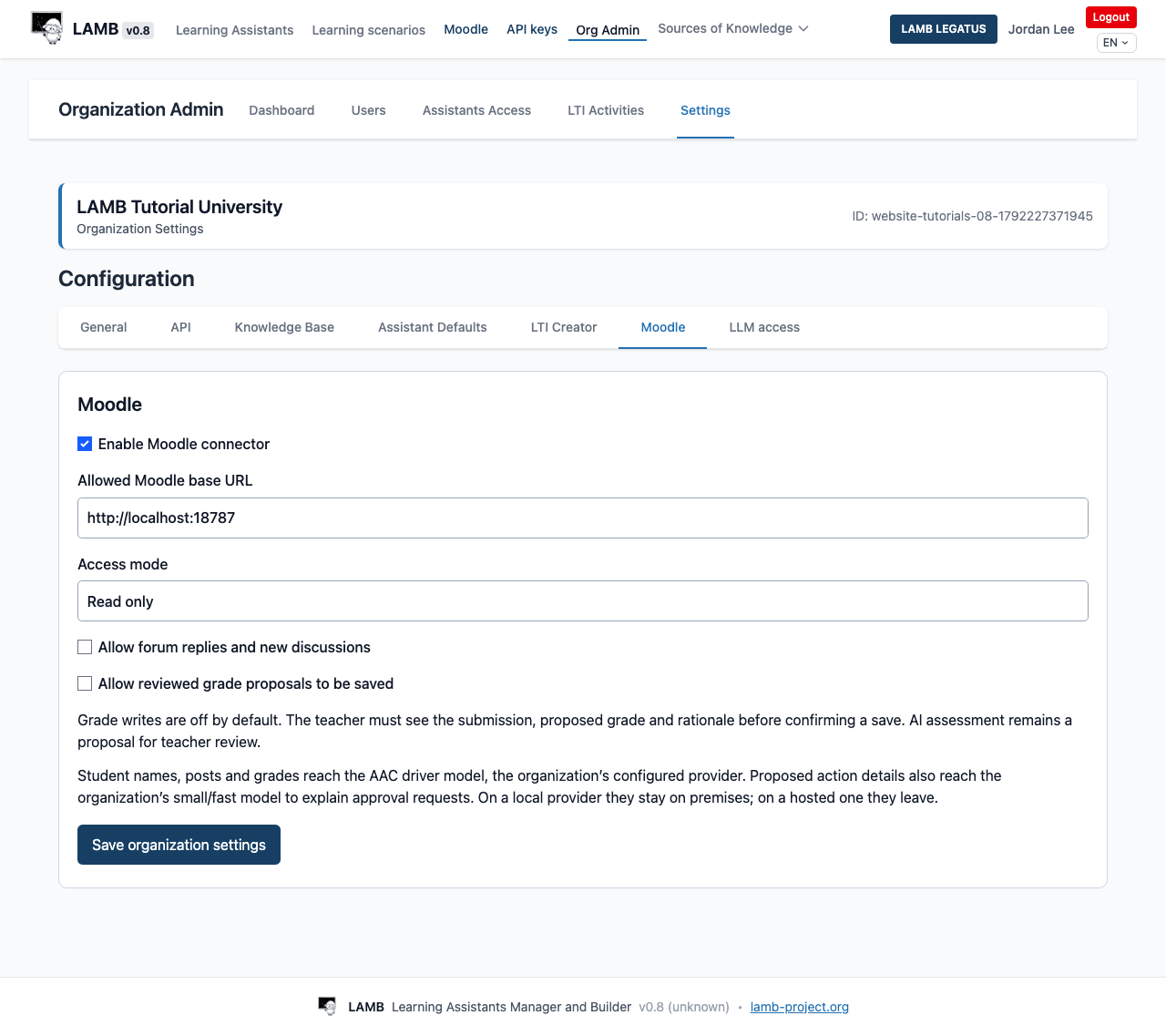
- Open Org Admin > Settings > Moodle.
- Tick Enable Moodle connector.
- Enter the Allowed Moodle base URL: one address,
httporhttps, without a user name, query or fragment. - Choose the Access mode. Read only allows reading and approved imports. Allow selected writes makes two more boxes available: Allow forum replies and new discussions and Allow reviewed grade proposals to be saved. Grade writes are off by default.
- Read the disclosure text on the page (its “AAC driver model” is the model LAMB LEGATUS uses), then choose Save organization settings.
Connect your account (teacher)
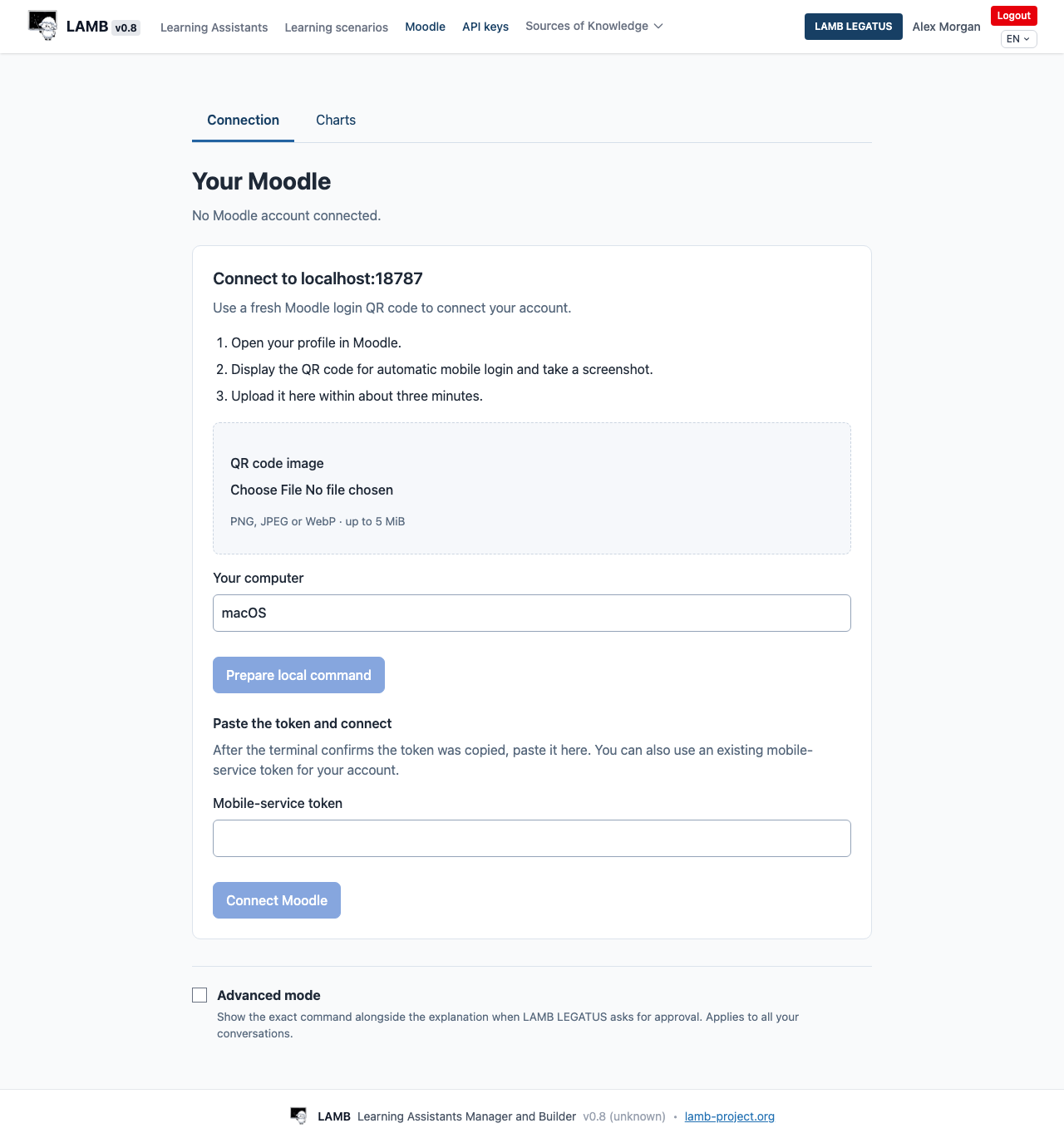
- Once the connector is enabled, a Moodle link appears in LAMB’s top bar. It opens Your Moodle.
- With a QR code: in Moodle, open your profile, display the QR code for automatic mobile login and take a screenshot. Within about three minutes, upload it under QR code image, choose your computer under Your computer (macOS, Windows PowerShell or Linux) and choose Prepare local command. LAMB only reads the image and builds a command; nothing is exchanged or stored yet.
- Run that command in a terminal on the same computer and network. It sends Moodle’s standard QR-login request for your token, identifying itself as the Moodle app because Moodle accepts that request only from the app, and copies the token to the clipboard. If your institution does not allow this, use the token field instead.
- Paste the token into Mobile-service token and choose Connect Moodle. You can also paste an existing mobile-service token for your account here.
- LAMB checks that the token works on the allowed Moodle site, then stores it encrypted with your connection. It does not check that the Moodle account is yours, so paste only a token for your own account.
Never paste a Moodle token into a LAMB LEGATUS conversation. LAMB LEGATUS does not ask for one.
What LAMB LEGATUS can then do
Open LAMB LEGATUS from the top bar and ask about your course. See Work with LAMB LEGATUS for the basics.
- Without asking: read courses, assignments, forums, grades, quizzes, the calendar and similar information, with course-wide reads limited to courses where you are a teacher; collect new forum posts across those courses; read a course file, Page or Book without importing it.
- Drafts for your review: feedback on a submission with a proposed grade and a rationale. A draft changes nothing in Moodle.
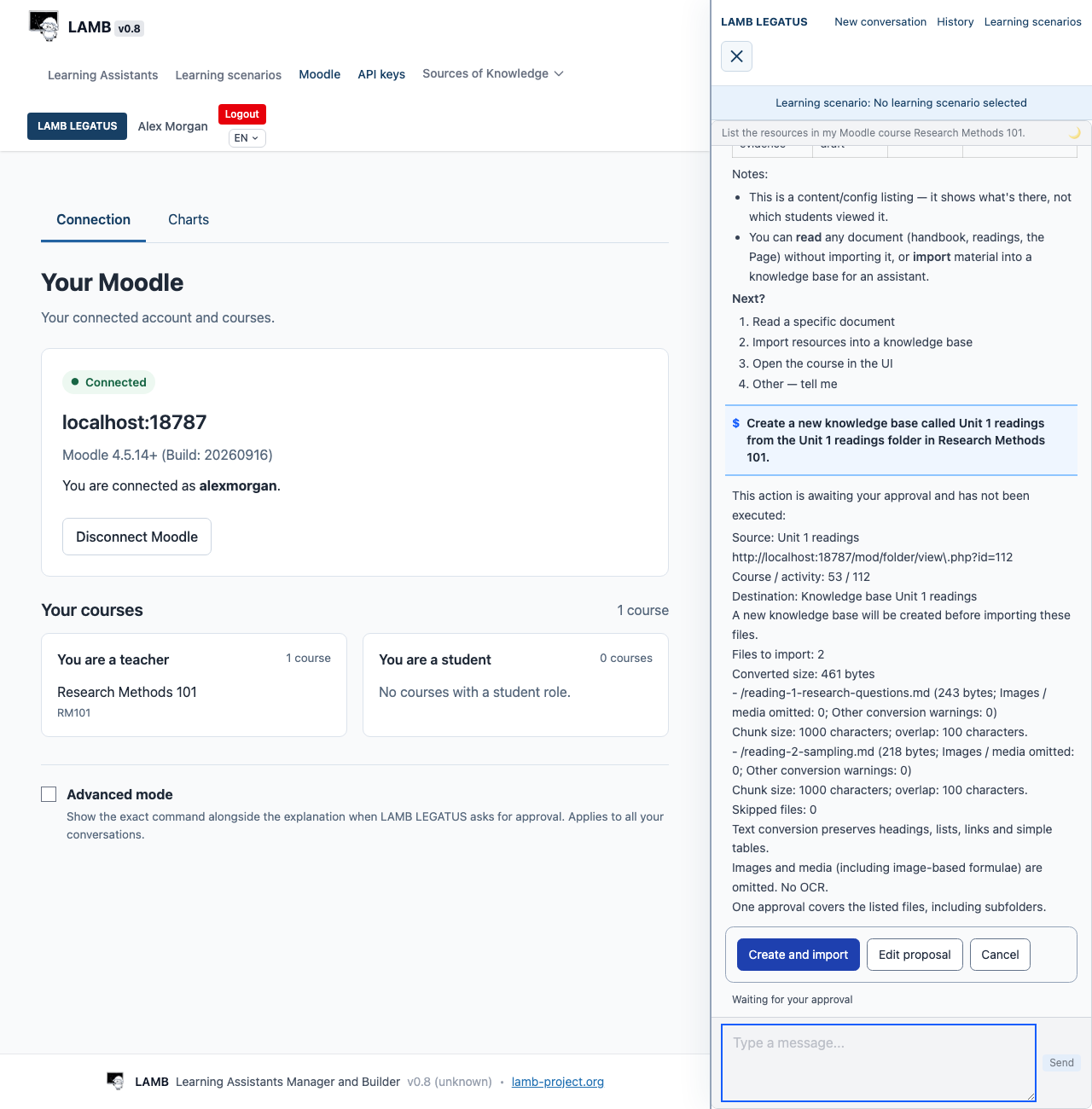
- After your approval, one card per action: import a File, Folder, Page or Book into a new or existing knowledge base. Imports need approval even in read-only mode. The card lists the source, the destination, each file and the chunk settings.
- Only if the organization allows writes, and with approval each time: post or reply in a forum, or save one learner’s grade with its rationale after you have seen the submission. When a write is not allowed, LAMB LEGATUS offers a draft for you to post yourself.
Tick Advanced mode on the Your Moodle page to see the exact command on each approval card as well as the explanation. It applies to all your conversations.
What reaches the model provider
Student names, posts and grades that LAMB LEGATUS reads reach the organization’s configured model provider. Details of a proposed action also reach the organization’s small, fast model, which writes the approval explanation. When LAMB LEGATUS reads a course file, Page or Book without importing it, the full text of that document goes to the organization’s small, fast model, or to the LAMB LEGATUS model if no small model is set; LAMB LEGATUS itself receives only an overview and the passages it asks for. With a local provider this data stays on your premises; with a hosted provider it leaves them. Plan this with your data protection officer. See also privacy.
Disconnect
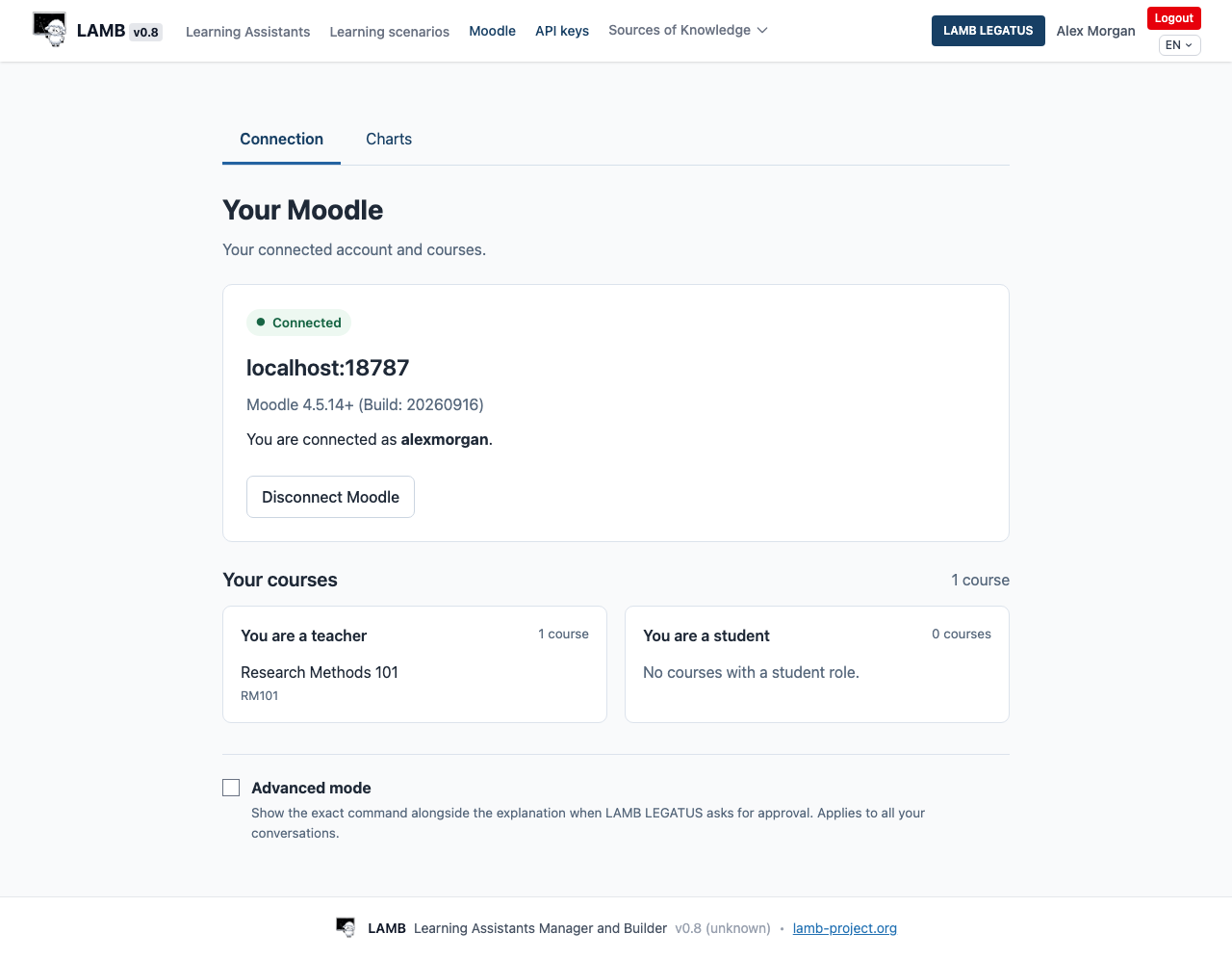
- On Your Moodle, choose Disconnect Moodle. LAMB deletes the stored token and cancels any approval still waiting.
- Disconnecting does not revoke the token in Moodle. To revoke it, change your Moodle password and leave Log out of all web apps ticked (this signs out every mobile and web-service session of your account), or ask your Moodle administrator to delete the token under Site administration > Server > Web services > Manage tokens.
If the administrator changes the allowed Moodle address, your connection shows “Stored connection is inactive”. Disconnect, then connect again.
Expected result: Your Moodle shows Connected with your account and your courses, LAMB LEGATUS can describe a course you teach, and an import creates a knowledge base only after you approve its card.