Make an assistant available in your LMS
You need: a tested assistant, permission to publish it and an institution-approved LMS integration. Ask your LMS administrator which path your installation uses. Publishing an assistant and configuring a course activity are related but separate actions.
1. Review the saved assistant
Check its instructions, source material, model and test results. Make sure the material is appropriate for the students who will use it. Open the assistant’s Properties view and use the publication control available in your version.
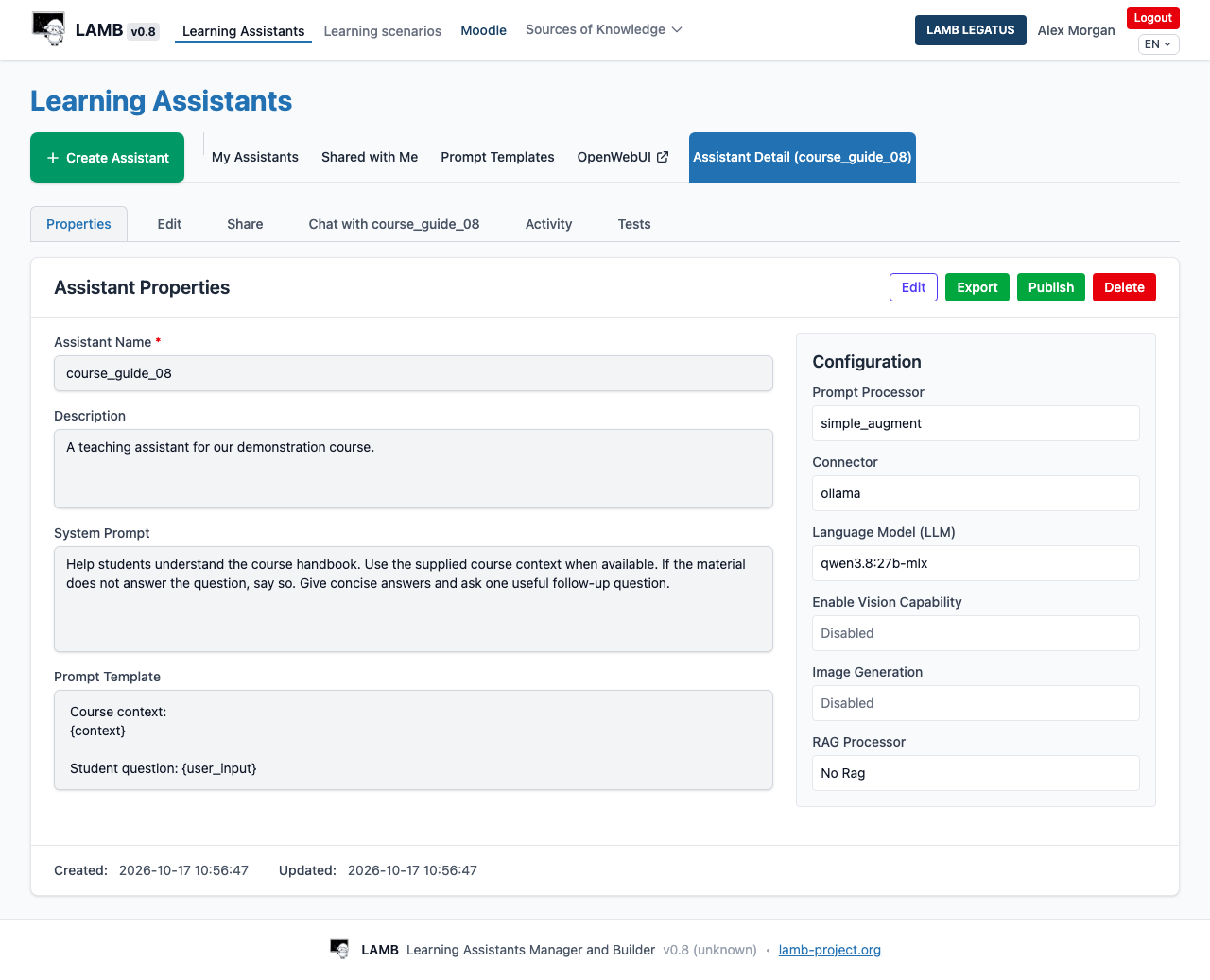
2. Follow your institution’s integration path
The 0.8 LTI guide distinguishes individual-assistant publication, Creator access, course activities and separate applications. These paths are retained; none is designated deprecated in this edition.
With an institutionally configured activity tool, instructors may choose published assistants during the activity’s first setup. Other installations expose individual-assistant LTI publication details. Do not mix the launch URL or credentials of one path with another.
If your administrator asks you to add a Moodle External tool activity, use the exact launch address and configuration they provide. The documented assistant/tool-template path uses LTI 1.1. Confirm the protocol and course permissions before proceeding. Keep shared secrets out of screenshots, email threads and public support reports.
3. Check as a learner
Use an authorized demonstration student account or your institution’s supported testing procedure. Open the activity from the course, send a question and verify that the intended assistant responds. Confirm that learner access does not expose instructor controls.
If the activity includes assessment, check the instructor’s review step, the intended grade scale and the value shown in the LMS gradebook. A successful launch alone does not verify grade return.
4. Explain the activity
Tell students its purpose, permitted use, limitations and where to ask for help. Explain the applicable conversation-review and data-processing policy. Do not assume that learners are anonymous or that an interface label establishes their informed agreement.
Expected result: an authorized learner can use the intended activity from the course, and the teaching team can explain how it operates. If you cannot test the learner path, do not describe the course setup as accepted.
For a separately illustrated application-template launch and instructor setup, see the tool walkthrough. Its mock-LMS screenshots do not depict an institutional Moodle deployment.