Give teachers their account with a creator code
For organization administrators and teachers. In LAMB 0.9 a teacher who opens a LAMB activity from the LMS and has no LAMB Creator account can create one on the spot, with a creator code from the institution. The administrator creates the codes and hands them out. The teacher types one, once.
The screenshots are real captures of the 0.9 release candidate with invented organizations, people and course. About the screenshots.
Before you start
- Your institution runs LAMB 0.9 and its LMS has the LAMB activity tool. Connect LAMB and Moodle shows the setup with LTI 1.1; the 0.9 release notes cover LTI 1.3.
- The codes belong to an organization other than the system organization. The system organization issues no codes.
- Administrators need the administrator role in that organization. Teachers need the instructor role in the LMS course.
A code works only for a person the LMS presents as an instructor, and only on the page LAMB returns when that person opens an activity. A student cannot use it, and nobody can use it from outside the LMS. Within those limits, every instructor who has the code can join your organization while the code is active: use the expiry date, the use limit and the Disable button to stay in control.
Administrators: create a code
Sign in to LAMB Creator and open Org Admin → Settings → LTI Creator. Go down to Creator codes.
Under New code, write a Label such as the term or the faculty. The label is for you: teachers never see it. Add an Expiry date, a Use limit, both or neither.
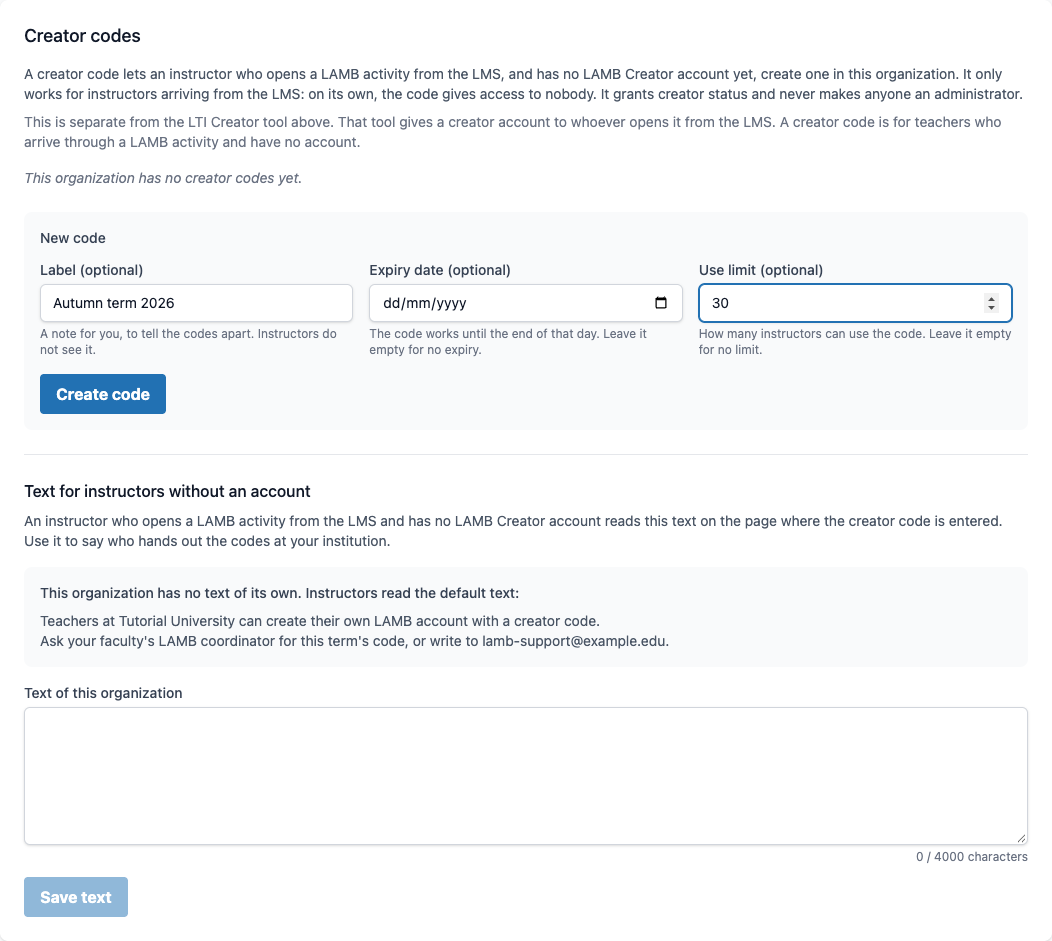
A first code for the autumn term, for at most thirty teachers. Demonstration data. Capture details · Full size Select Create code. LAMB shows the code once: three groups of four characters. Copy it, pass it on to your teachers, then select I have saved it.
From now on the list shows the code’s last four characters, its status, how many teachers have used it and when it expires. LAMB does not keep the code itself, so it cannot show it again. If a code is lost, create another.
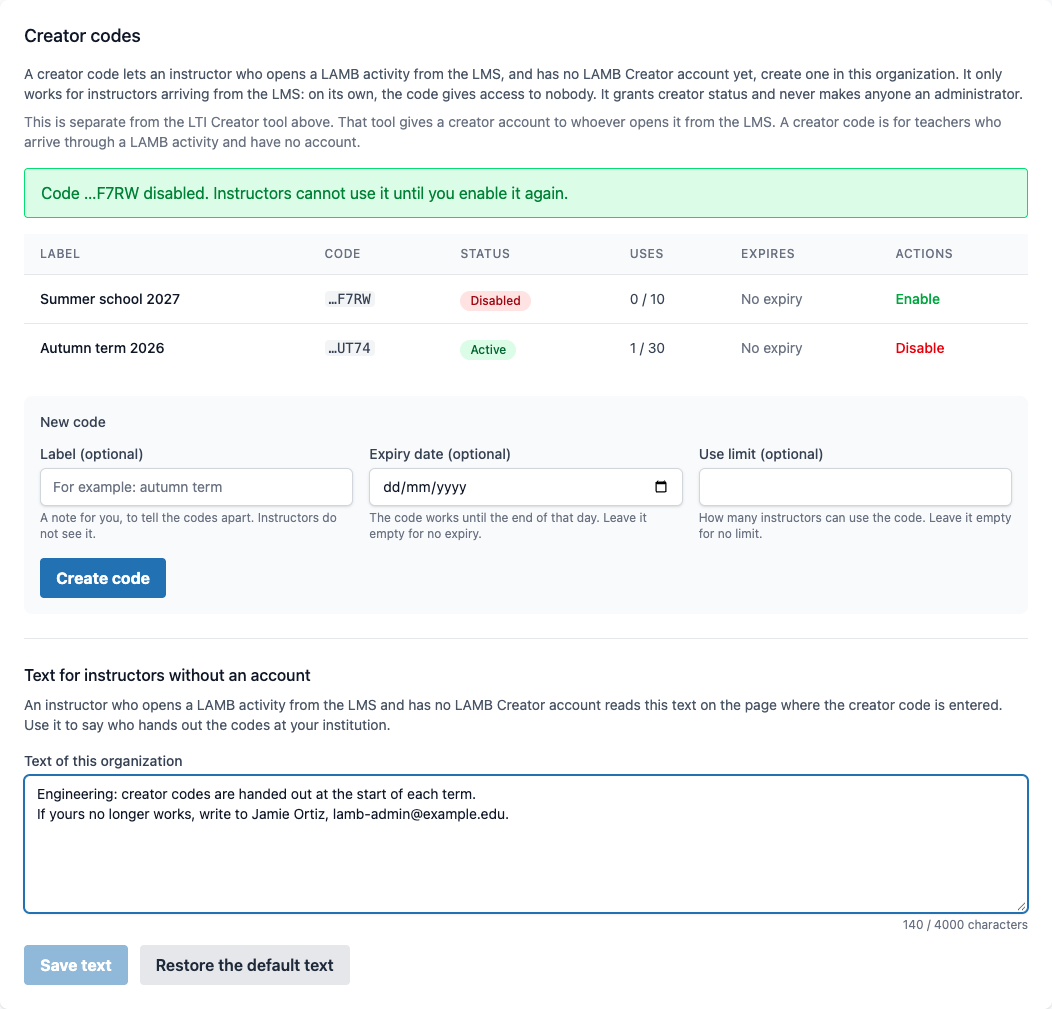
One teacher has used the autumn code. The summer code is disabled until it is needed. Demonstration data. Capture details · Full size
Disable stops a code at once, and Enable brings it back. Disabling a code does not affect the accounts already created with it. A code that has passed its date shows Expired; one that has reached its limit shows Used up.
Administrators: write the text teachers read
A teacher who arrives without an account, and perhaps without a code, needs to know whom to ask. On the same screen, Text for instructors without an account holds that message: write it under Text of this organization and select Save text. Restore the default text goes back to the default.
Where the text appears depends on how the LMS is connected:
- With LTI 1.1, LAMB does not know the teacher’s organization until the code is entered, so the page shows the default text of the installation. The system administrator writes it on this same screen, in the system organization. Your organization’s text appears below the message when one of your codes is refused because it is disabled, expired or used up.
- With LTI 1.3, when the LMS registration is enabled for a single organization, the page shows that organization’s text from the start.
Teachers: enter the code
In your course, open the LAMB activity. Instead of the activity you get the page Set up this activity with LAMB, with your institution’s message.
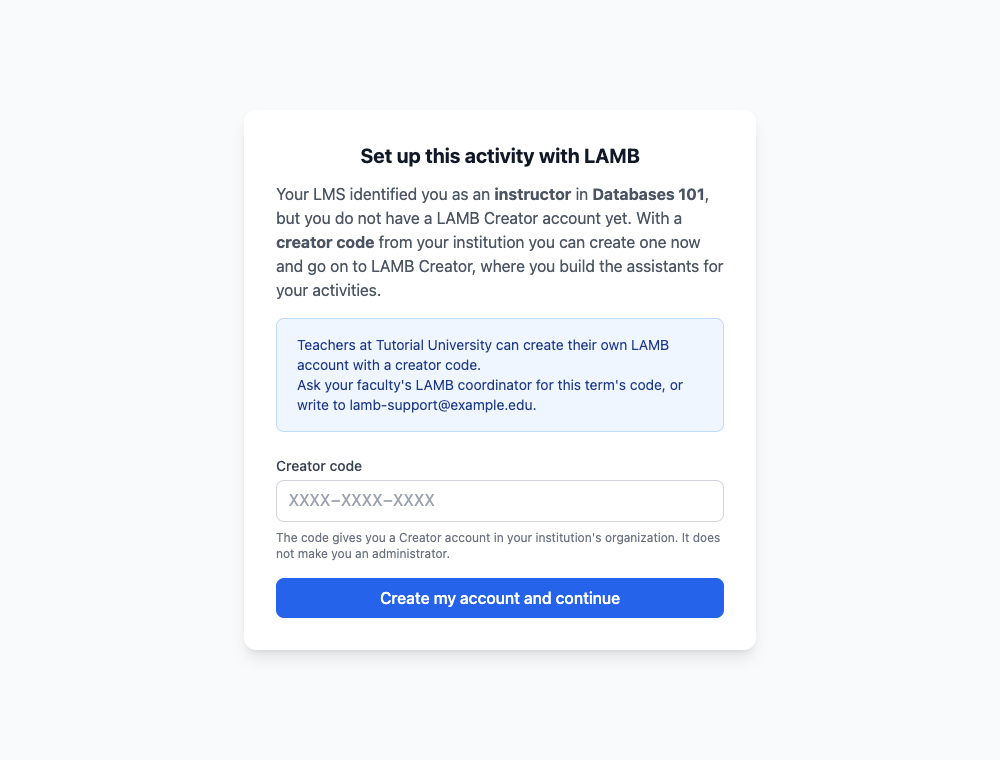
What a teacher without an account sees when opening the activity. The blue box is the institution's own text. Demonstration data. Capture details · Full size Type the code in Creator code. Capitals, spaces and hyphens do not matter. Select Create my account and continue.
LAMB Creator opens in the same window, with your session already started. Your name is at the top with your organization below it. A bar says which activity you came from and offers Back to the activity.
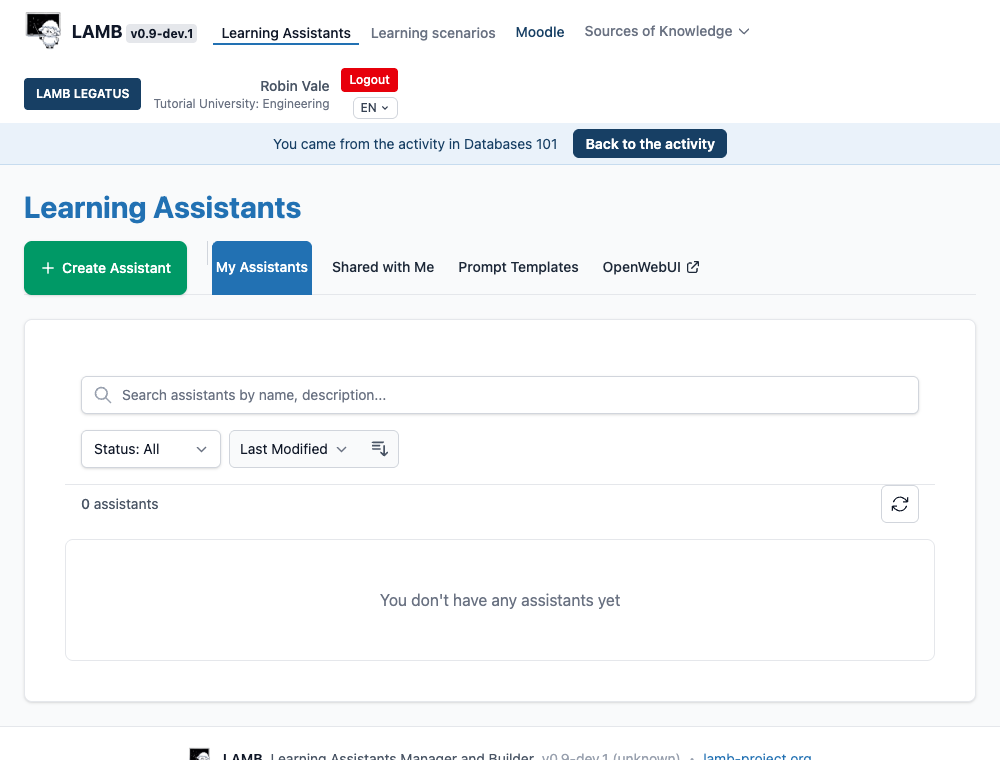
Straight into LAMB Creator, with the way back to the activity. Demonstration data. Capture details · Full size Create an assistant and publish it. An activity needs at least one published assistant.
Select Back to the activity, choose the activity type and the assistants, and save. Connect LAMB and Moodle walks through the setup page.
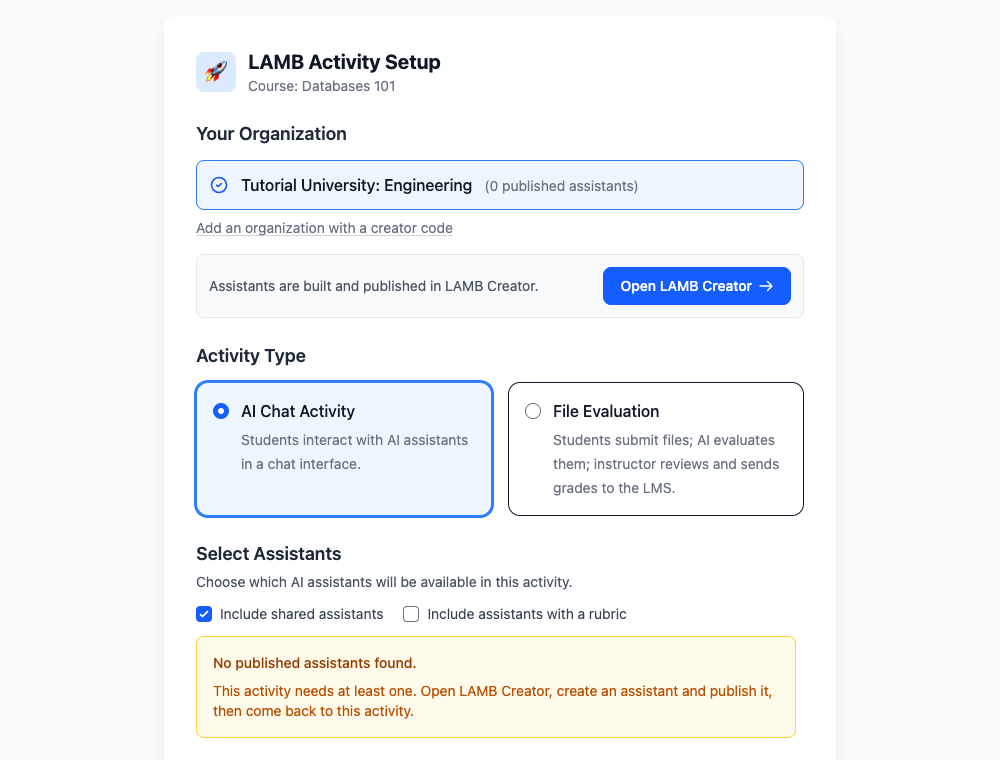
Back in the activity. Until an assistant is published, the page says so and offers LAMB Creator. Demonstration data. Capture details · Full size
The code is asked once. From then on, opening this or any other LAMB activity from the same LMS takes you to the activity.
Your account has no password: you enter LAMB by opening an activity from the LMS. The page that asks for the code is in English in this version, whatever language you use in LAMB.
If the code is refused
The page keeps the field and says why.
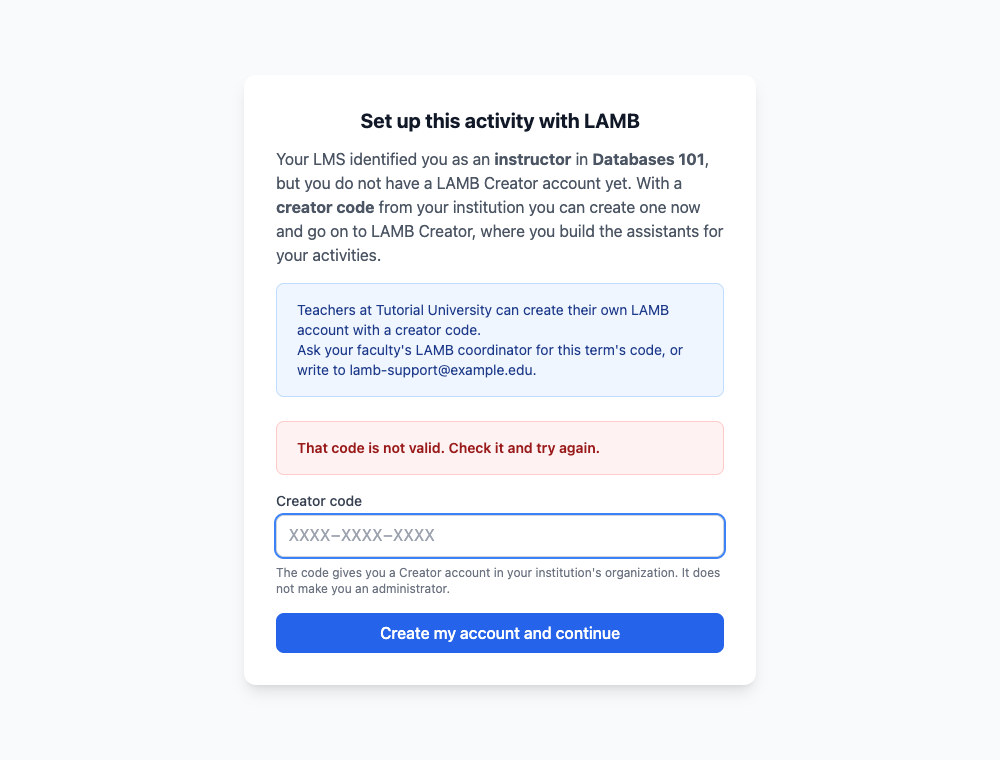
| Message | What it means | What to do |
|---|---|---|
| That code is not valid. Check it and try again. | No code like that exists in this LAMB. | Check the characters. Codes never contain 0, O, 1 or I. |
| This code is no longer active. | An administrator disabled it. | Ask for a current code. The organization’s text below the message says whom. |
| This code has expired. | Its date has passed. | Ask for a current code. |
| This code has reached its limit of uses. | As many teachers as it allowed have used it. | Ask for a current code. |
| Too many attempts. Wait a few minutes, then open the activity from your LMS again. | Five refused attempts in fifteen minutes. | Wait fifteen minutes and open the activity again. |
| You already have an account in this organization. Go back and choose it. | The code is for an organization you already belong to. | Go back and choose that organization. |
| This code belongs to an organization that your LMS is not connected to. | With LTI 1.3, the code must be of an organization enabled for your LMS. | Ask your administrator. |
| Your LAMB account in this organization is disabled. | An administrator disabled your account. | Ask your administrator. |
| Session expired. | The page was open for more than fifteen minutes. | Open the activity from the LMS again. |
More than one organization
A teacher can have an account in several organizations of the same LAMB, for example two faculties, each with its own code.
On the activity setup page, select Add an organization with a creator code.
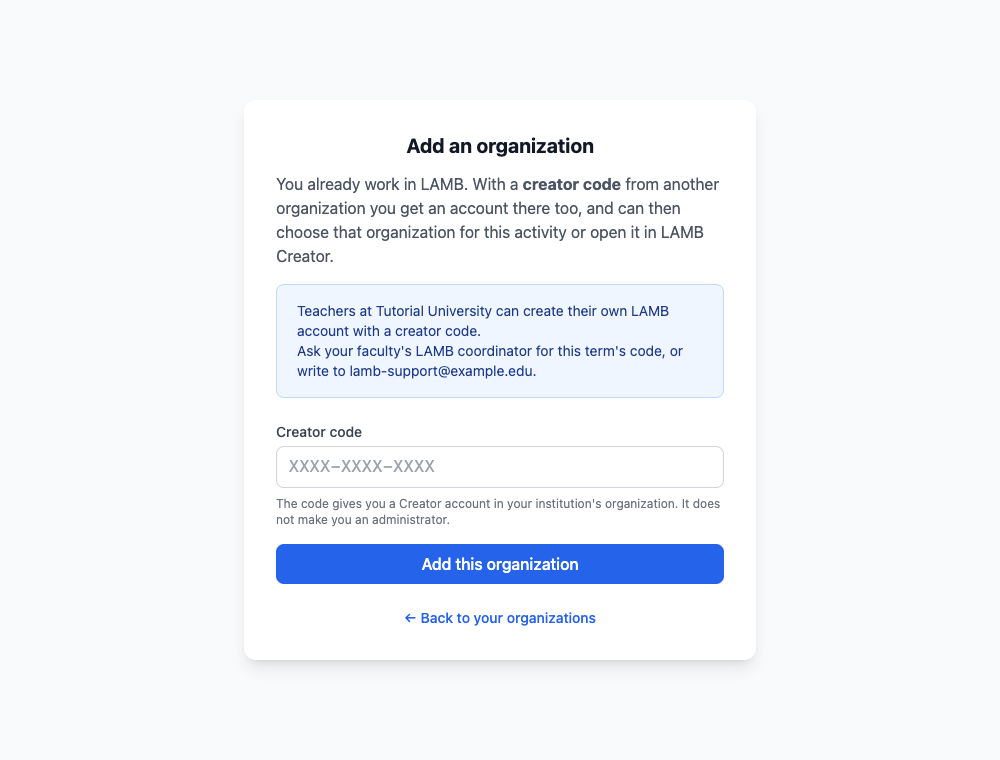
Adding a second organization with its own code. Demonstration data. Capture details · Full size Enter the other organization’s code and select Add this organization.
The setup page now lists your organizations. Choose the one this activity belongs to: its assistants are the ones you can offer in it. This cannot be changed later.
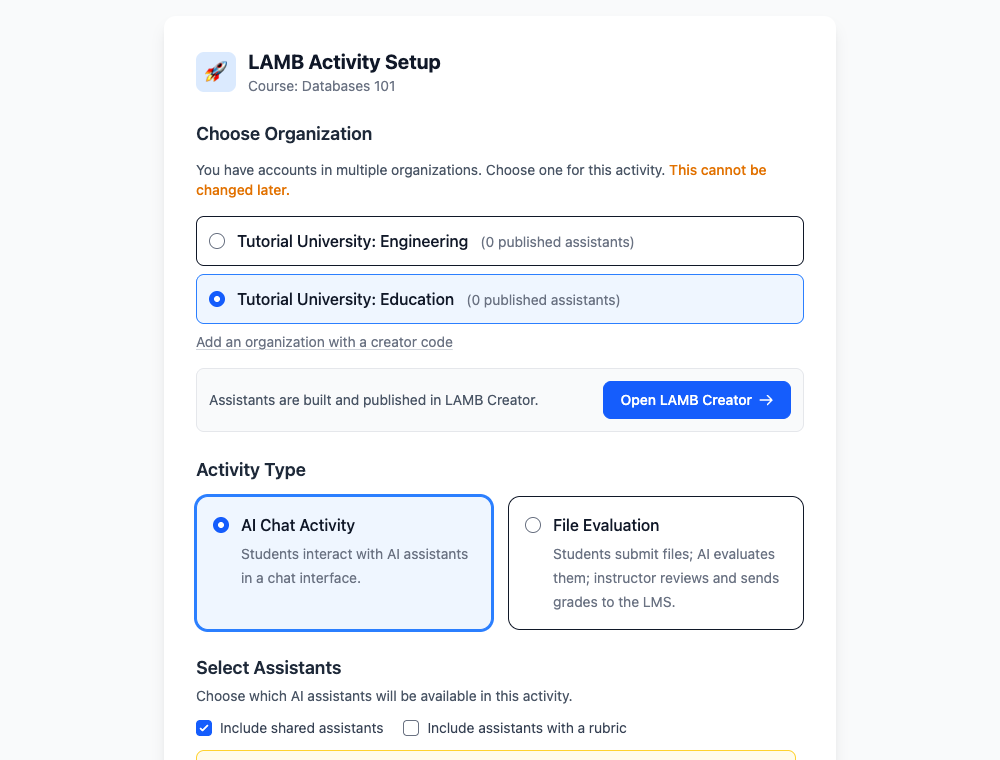
One activity belongs to one organization. Demonstration data. Capture details · Full size
In LAMB Creator, the organization below your name becomes a menu. Change organization takes you to another of your organizations without going back to the LMS.
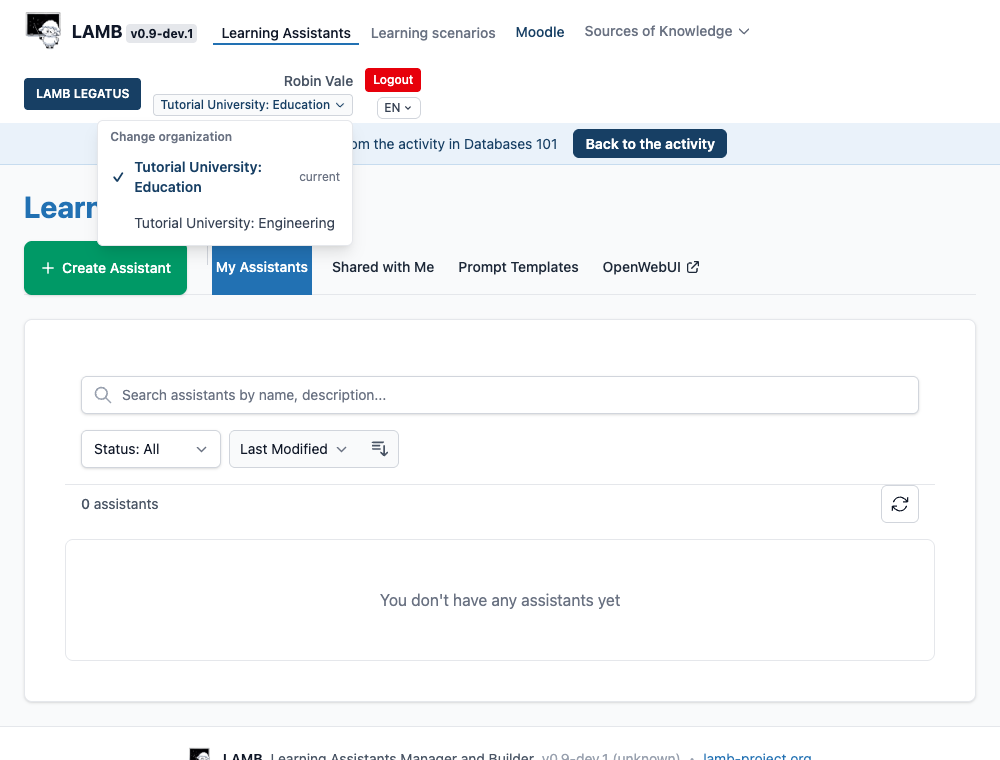
Between the activity and LAMB Creator
- LAMB stays in the window the LMS opened. Open LAMB Creator, on the activity pages, takes you to LAMB Creator; Back to the activity brings you back.
- This works for up to four hours after you opened the activity from the LMS. After that, or when a page answers “Session expired”, open the activity from the LMS again. An activity setup page left open for more than two hours also expires.
- Each browser tab remembers its own activity. Opening another activity in another tab does not change where the first one returns to.
- Two tabs do not hold two organizations: when you change organization in one tab, LAMB Creator changes in the other too.
What a code does not do
- It does not make anyone an administrator. A system administrator can promote an account afterwards.
- It does not give a password. Teachers who sign in to LAMB with an email and a password keep doing so: a launch from the LMS does not sign them in to LAMB Creator.
- It is not the organization’s sign-up key, which belongs to the sign-up form on LAMB’s login page. Each is refused in the other’s place.
- It is separate from the organization’s LTI Creator tool, described under “Educator access to Creator” in Choose your LMS entry path. That tool gives an account to whoever opens it from the LMS; a creator code serves teachers who arrive through an activity.
Expected result: as an administrator, you have an active code, you know how many teachers have used it, and teachers without a code read whom to ask. As a teacher, you have a LAMB Creator account in your organization, you have built and published an assistant, and your activity is set up, without asking anyone to create the account for you.
About the screenshots
The images are real captures of LAMB 0.9 (version label v0.9-dev.1), taken on 15 November 2026 from a test deployment running the release candidate. The organizations, the people, the course and the addresses are invented, and the launches from the LMS were signed by a test script as an LMS signs them. No image shows a creator code: the panel that shows a new code once was not photographed.