What's new in LAMB 0.8
Tagged v0.8 on 11 November 2026. LAMB 0.8 was built on 0.7 in October 2026, merged into the development branch on 20 October 2026 and tagged on 11 November 2026 (source at the tag). 0.9 is built on it. The illustrated 0.8 guides describe each feature step by step. This page says what changed and why.
At a glance
| Change | Who it is for | Needs setup? |
|---|---|---|
| Course activities as modules | Teachers, LMS administrators | No. The existing activity tool gains the choice. |
| Chat activity: students are told when transcripts can be read | Teachers, students | No |
| File evaluation | Teachers | The assistant needs a rubric |
| LLM access | Institutions, teachers, students | Yes. An optional gateway and organization rules. |
| Fixes and smaller changes | Everyone | No |
Course activities as modules
What it is. In 0.7 the LAMB activity tool created one kind of activity: a chat with the assistants the teacher selected. In 0.8 the same tool asks the teacher what kind of activity this is. Each kind is a module with its own setup, its own teacher view and its own student view:
- AI Chat Activity: students talk with the selected assistants.
- File Evaluation: students submit a file, an assistant proposes a grade with the teacher’s rubric, and the teacher reviews it and sends it to the LMS.
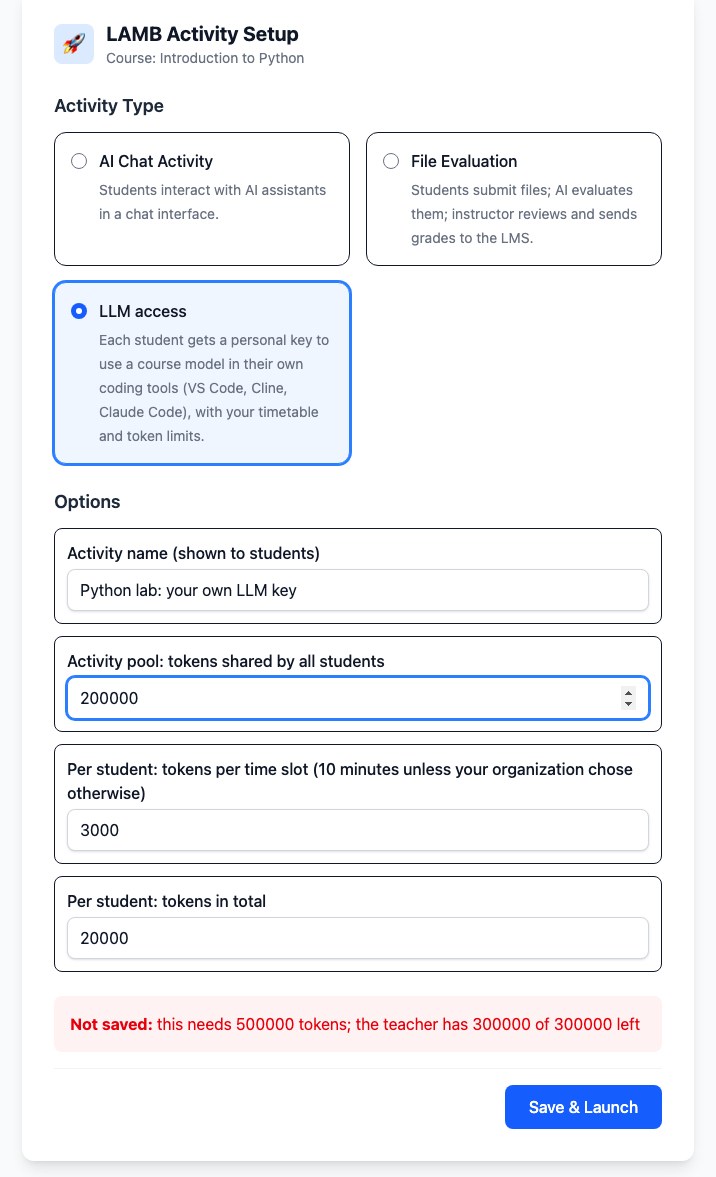
- LLM access: each student receives a personal key to use a course model in their own tools.
The teacher chooses on the first launch of a new activity. Students cannot do that setup. Later launches open the teacher’s view or the student’s view of that activity.
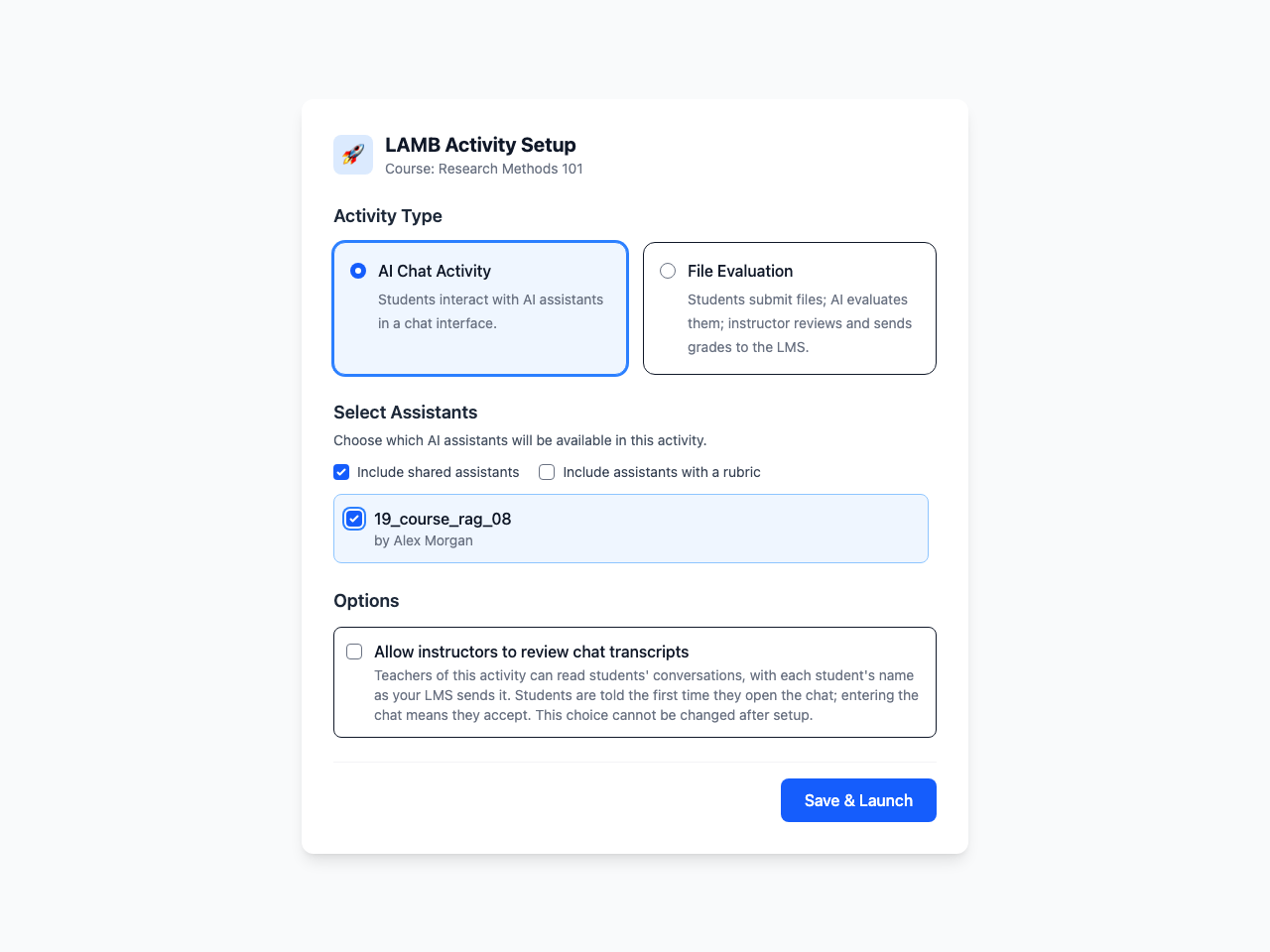
Why. A course needs more from an assistant than a chat window. Assessment with a rubric and governed access to models are different tasks, with different data and different rules about who sees what. Building each one as a module keeps them apart, lets an institution switch on only what it wants and gives future activity types a place to go.
What to know.
- Activities created with 0.7 keep working as chat activities. Nobody has to reconfigure them.
- The LMS side does not change: the same External tool, the same consumer key and secret. In 0.8 the activity tool uses LTI 1.1; 0.9 adds LTI 1.3.
- The setup lists published assistants. If none appears, publish the assistant first; for file evaluation it also needs a rubric.
- The other LTI entry paths, individual-assistant publication and Creator access from the LMS, are unchanged. See Choose your LMS entry path.
Chat activity: students are told when transcripts can be read
What it is. When a teacher sets up a chat activity with Allow instructors to review chat transcripts, every student now sees a notice the first time they open the chat. It says that the teachers of the activity can read their conversations, with the name the LMS sends. Entering the chat means accepting it. The choice is made at setup and cannot be changed afterwards.
Why. The setup page had promised a notice to students and anonymous transcripts. The code delivered neither. The fix made the product do what is honest: tell the student once, clearly, and stop promising anonymity it cannot give (issue #548).
What to know. A teacher who does not need to read conversations should leave the option off: the activity then gives teachers no access to the text of students’ conversations. The activity’s dashboard shows the owner’s name instead of an account email address.
File evaluation
What it is. An activity for submitted work. Students upload a document from the course. The teacher starts the AI evaluation: an assistant that carries the teacher’s rubric reads each submission and proposes a score with feedback. The teacher reads the proposals, accepts them or changes them, and sends the final grades to the LMS gradebook.
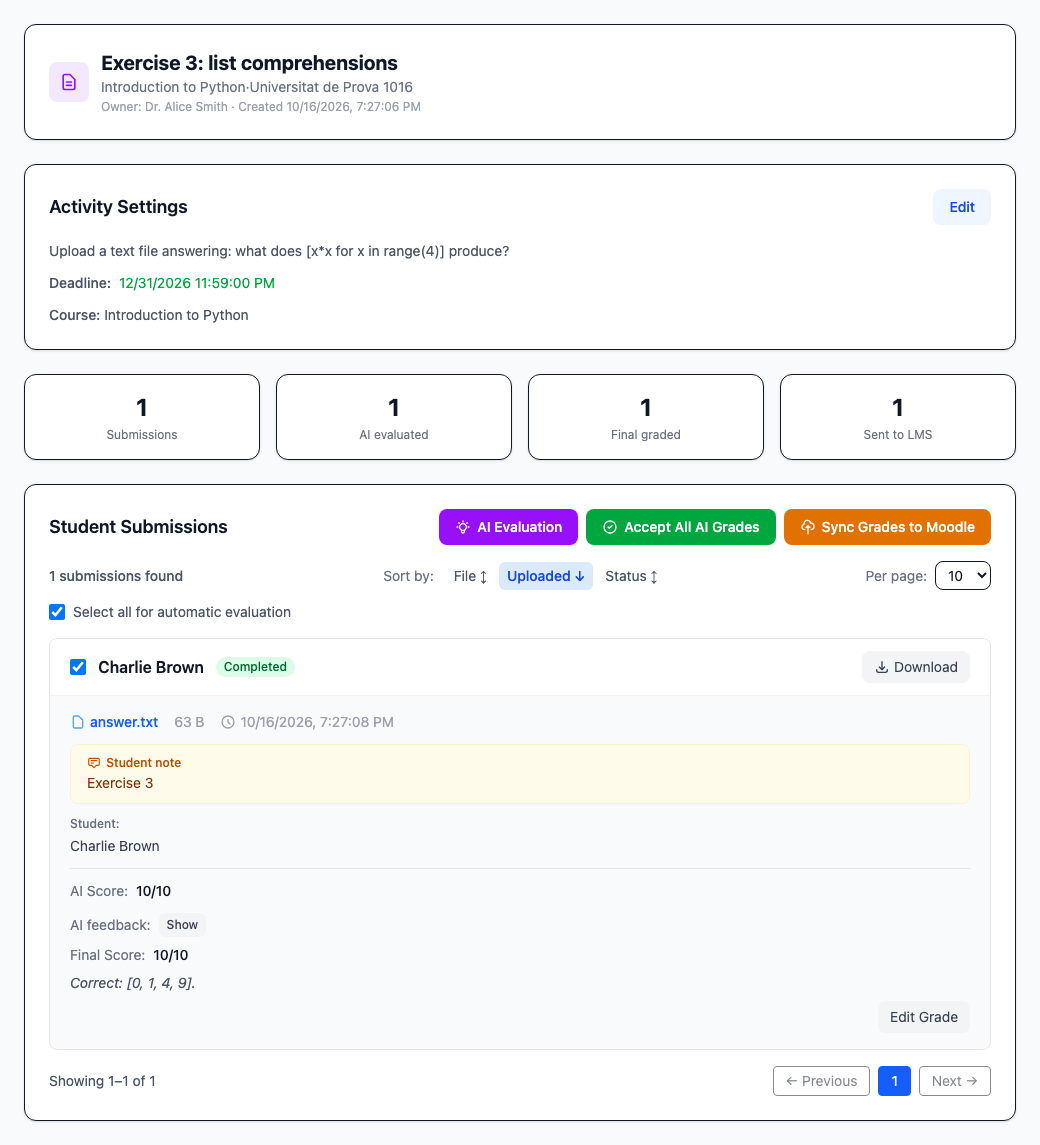
Why. Feedback on written work is where teachers spend the hours and where students wait longest. A rubric applied the same way to every submission gives a first reading in minutes. The grade remains the teacher’s decision: nothing reaches the gradebook that the teacher has not accepted.
What to know.
- The assistant must be published and must use a rubric. Create the rubric in LAMB Creator first.
- Students see their grade after the teacher has sent it to the LMS, not when the assistant proposes it.
- Accept All AI Grades copies every proposal to the final score, including submissions the teacher had already graded by hand. Review before using it on a mixed list.
- Grades return through LTI 1.1 Outcomes in 0.8. From 0.9 they can also return through the LTI 1.3 grade service.
- A language model can misread a document or a rubric. Read the feedback as well as the number.
- The 0.9 notes list what an administrator must check before relying on this activity in a container deployment: see Upgrade notes.
LLM access: personal keys under your rules
What it is. An activity that gives each student a personal key to a model the institution provides, for use in their own tools: a code editor, a notebook, a command-line assistant. The student opens the activity in the course, accepts a short notice on data use and receives the key and the address to configure. The teacher sets the limits; the organization sets what teachers may hand out.
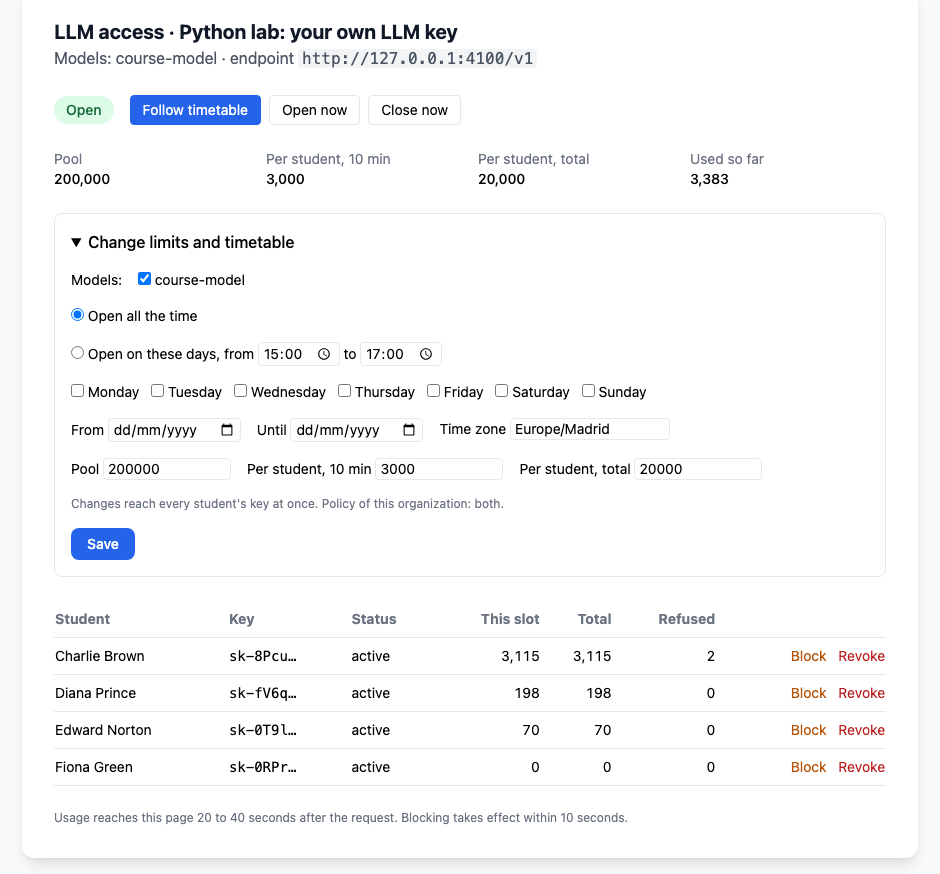
Why. Students already use language models for course work, with personal accounts the institution neither chooses nor sees. A course that wants students to work with a model in real tools has had two options: ask them to pay, or hand out a shared key with no limits. LLM access is the third: the institution’s models, a key per student, limits the teacher sets, a timetable, and a record of use. The website calls it the last mile for your AI.
How the rules stack.
- The system administrator connects LAMB to a gateway, a separate service that checks every request’s key and budget before passing it to the model.
- The organization administrator switches the feature on for the organization, chooses the models and decides how many tokens each teacher may distribute.
- The teacher sets, for each activity, a pool for the whole class, a limit per student for each time slot and a limit per student in total, and optionally a timetable (for example, Tuesdays from 15:00 to 17:00).
- The student has one key for that activity and sees their own use.
The teacher can block a student, revoke a key, and open or close the activity by hand at any time.
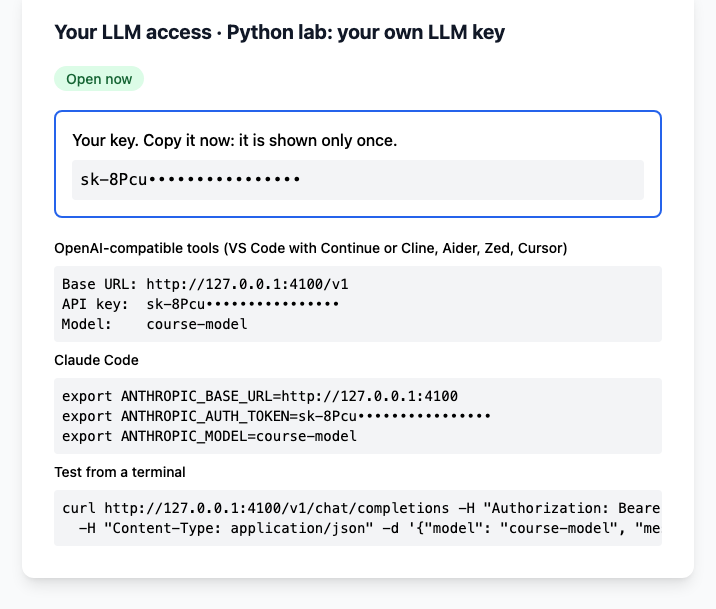
What to know.
- It needs the optional gateway. LAMB works with a LiteLLM proxy deployed next to it. The repository documents the deployment in
Documentation/installation/token-dealer.md. An installation that does not deploy it does not offer LLM access, and nothing else changes for it. - Requests to the model do not pass through LAMB. They go from the student’s tool to the gateway. LAMB decides who has a key and under what limits, and reads back how many tokens were used. LAMB’s own records hold token counts, not the text of requests. What the gateway itself logs depends on how it is configured.
- Limits are counted in tokens, and use is charged when a request finishes, so a single request can go a little over a limit before the next one is refused.
- A change of the organization’s rules does not reach back. Activities and keys that already exist keep the limits they were created with; the settings page tells the administrator so (issue #549).
- It covers LLM access activities. Chat and file-evaluation activities use the assistants’ own model settings, as before.
- Three known limits, still open in the 0.9 candidate (issue #550): a student whose key the teacher blocked can obtain a working key with Replace my key; replacing a key gives the student the full per-student total again; and moving an activity’s end date later does not extend keys already issued. Until they are fixed, treat Block as a signal to the student and not as a lock, and prefer a class pool to per-student totals alone.
- The work is tracked in the public issues #533 to #545. The guide Give students model access under your rules walks through each role.
Fixes and smaller changes
- Names, not account addresses. Activity setup and the chat dashboard show the name of an assistant’s owner. Accounts created through the LMS have a generated email address that meant nothing to a teacher.
- Students land on the public address. Behind a proxy, a student opening a chat or file-evaluation activity could be redirected to an internal address. The redirect now uses the installation’s public address.
- A refused setup keeps the form. When saving an activity’s setup was refused, for example for asking more tokens than the teacher’s allowance, the form disappeared. It now stays, with the reason.
- Clearer setup messages. The setup says that an assistant must be published and, for file evaluation, must have a rubric.
- Organizations with the same name are told apart in the setup: the chooser adds each one’s short identifier.
Notes for administrators
- The database gains migrations 28, 31 and 33 on first start. They add columns and tables for typed activities and for LLM access, and delete nothing.
- The container image now builds three browser applications: LAMB Creator and the two activity apps (chat and file evaluation).
- LLM access stays off until the gateway is deployed and connected. The connection is a system administrator setting; an organization administrator cannot see or change it.
- File-evaluation submissions are stored inside the container. 0.8 writes submitted files to
/app/backend/uploads/file-eval/, outside the data volumes. Mount persistent storage there before using file evaluation, or the submissions are lost when the container is replaced. 0.9 moves them into the data volume (issue #559).