What's new in LAMB 0.9
Release candidate, not tagged. These notes describe LAMB 0.9 as it stands on the development branch (dev) at revision 023b3a9b (14 November 2026). It was merged into that branch on 11 November 2026. The project’s development instance has run 0.9 since 10 November 2026. It contains everything in 0.8. Details may still change before the version is tagged.
At a glance
| Change | Who it is for | Needs setup? |
|---|---|---|
| LTI 1.3 for course activities | LMS and LAMB administrators | Yes. The system administrator registers the LMS. |
| Creator codes | Teachers who arrive from the LMS without a LAMB account; organization administrators | Yes. An organization administrator creates a code. |
| Prompt filters | Teachers who use Advanced Mode | No |
| One system prompt per conversation | Everyone who chats with an assistant; developers who call the API | No. Read the upgrade notes. |
| LAMB LEGATUS Auto mode | Teachers | No. LAMB LEGATUS must be enabled, as before. |
| Assistant activity analysis | Teachers | No. It uses LAMB LEGATUS and needs access to conversation content. |
| LLM access: faster worker | System administrators who run the gateway add-on | Optional tuning |
| Command line | Developers and administrators | Update the LAMB CLI |
| Fixes and smaller changes | Everyone | No |
LTI 1.3 for course activities
What it is. The LAMB activity tool, the one a teacher adds to a course to create a chat, file-evaluation or LLM-access activity, now accepts LTI 1.3 launches as well as LTI 1.1. The same launch address serves both. Grades from file-evaluation activities return to the LMS gradebook through the LTI 1.3 grade service (Assignment and Grade Services, score scope).
Why. LTI 1.1 signs each launch with a secret shared between the LMS and the tool. LTI 1.3 replaces the shared secret with a sign-in exchange and signed messages that LAMB verifies against the keys the LMS publishes. Many institutions now ask for 1.3 on new integrations. LAMB adds it where course work and grades are involved, and leaves the other entry paths alone so that existing course links keep working (issue #551).
How it works.
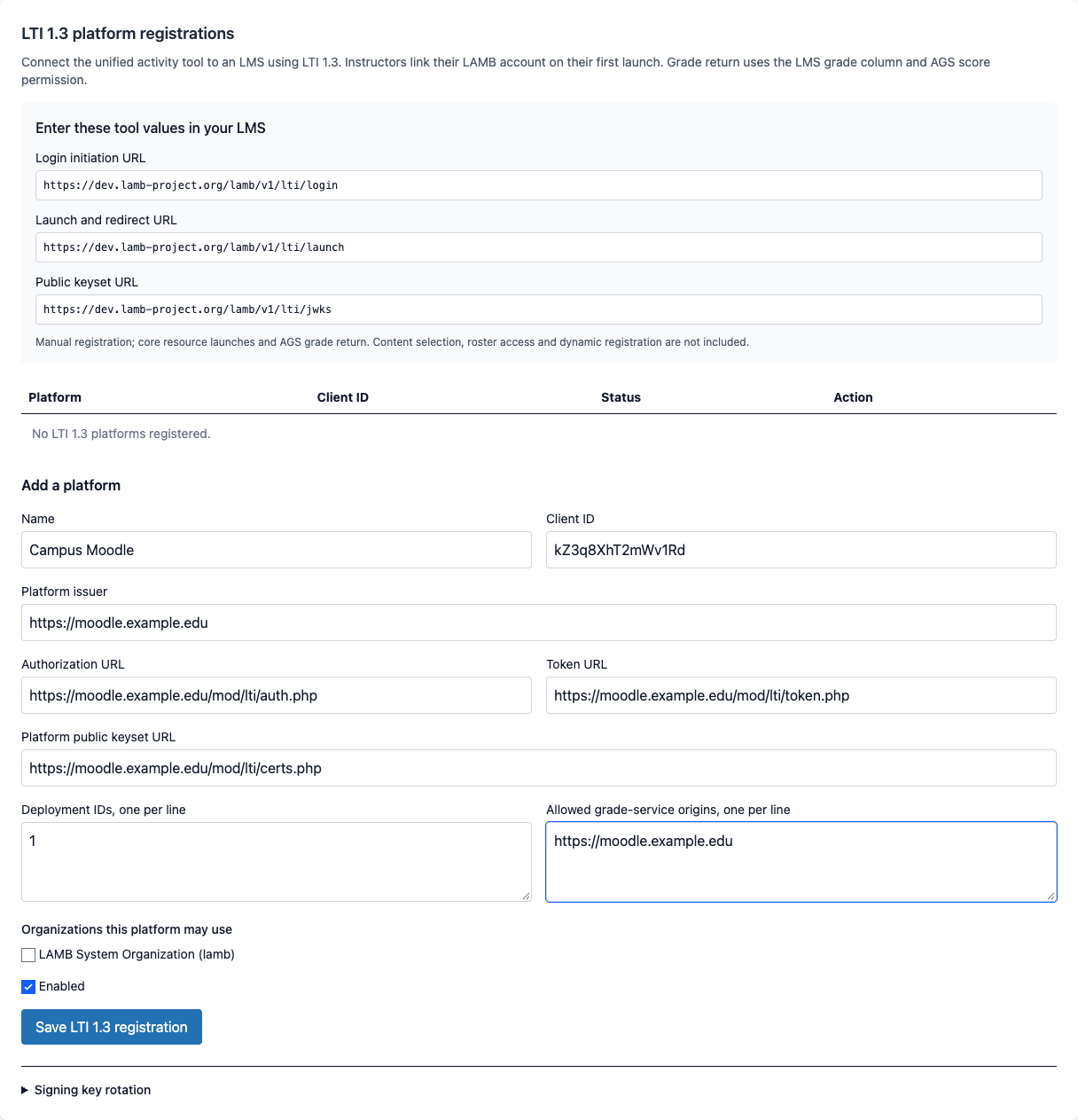
- The system administrator opens Admin → LTI Settings in LAMB. The page shows the three addresses to enter in the LMS: the sign-in address, the launch address and the address of LAMB’s public keys.
- In the LMS, the administrator configures an LTI 1.3 tool with those addresses. In Moodle this is a manually configured External tool with “Keyset URL” as the public key type.
- Back in LAMB, the administrator registers the platform with the values the LMS shows: issuer, client ID, the LMS’s own sign-in, token and key addresses, and the deployment ID. The registration also says which LAMB organizations may use it and which addresses may receive grades.
- A teacher adds the activity to a course and opens it. On the first launch the teacher links a LAMB Creator account by signing in to it once. From then on the teacher’s launches open the activity setup or the instructor view, and students’ launches open the activity.
What to know.
- An LMS identity does not open an organization by itself. A teacher who arrives through LTI 1.3 must link a Creator account that the registration allows. The same email address on both sides grants nothing.
- Public HTTPS addresses are required. Set
LAMB_PUBLIC_BASE_URL, andOWI_PUBLIC_BASE_URLwhen the student chat runs on a different address. LAMB keeps its signing keys in a directory that must survive restarts (LTI13_KEY_DIR, by default inside the data directory). Rotating the key keeps the previous public key published for 24 hours. - Registration is manual. Dynamic registration, content selection (deep linking) and roster access are not part of this release.
- Grade return uses the grade column the LMS provides for the activity. LAMB does not create gradebook columns. With LTI 1.1 grades keep returning through the older Outcomes service.
- The other entry paths stay on LTI 1.1: individual-assistant publication and Creator access from the LMS are unchanged.
- Tested with an unmodified Moodle 4.5 and an LTI test platform, with synthetic courses and accounts. Other LMS products follow the same standard but have not been tested by the project. The implementation is not certified by 1EdTech.
- No Moodle plugin and no Moodle-side code are involved, as with every LAMB integration.
Creator codes: teachers get their account from the LMS
What it is. A teacher who opens a LAMB activity from the LMS and has no LAMB Creator account used to be told to contact an administrator. In 0.9 that page asks for a creator code. An organization administrator creates the codes and hands them out. A valid code gives the teacher a Creator account in that organization, as a creator and never as an administrator, and takes them to LAMB Creator.
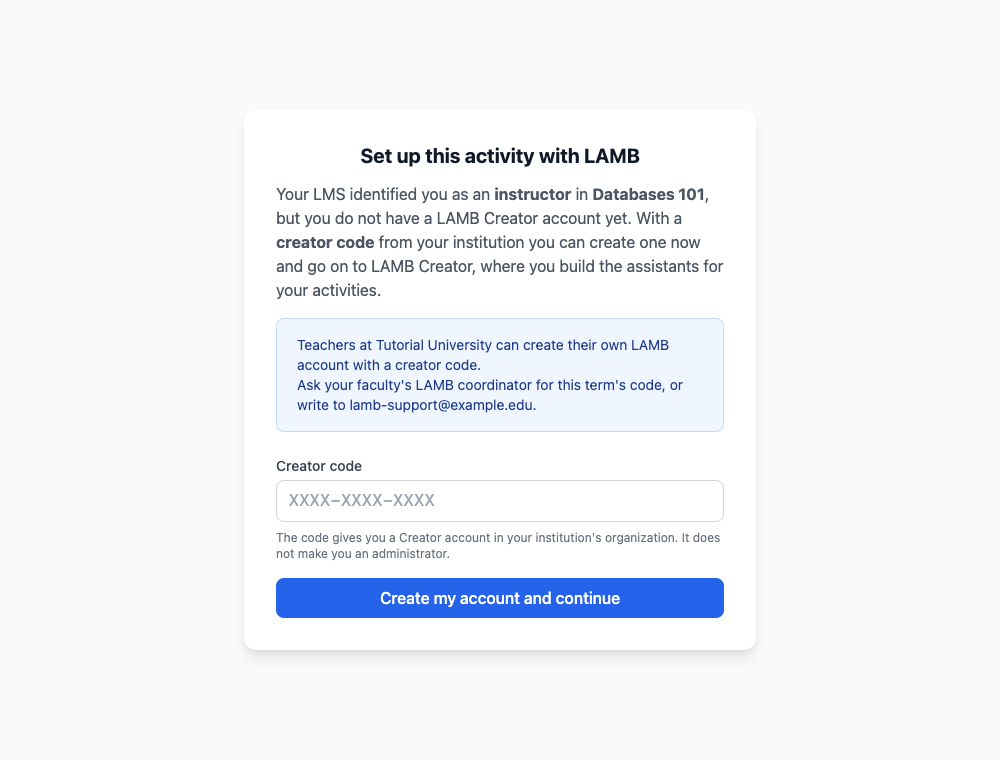
Why. An institution should be able to let its teachers in for a term without an administrator creating each account by hand. A code that worked anywhere would be an account for whoever got hold of it: codes get pasted into course pages and forwarded. So the code works only on the page that a verified launch from the LMS returns to someone the LMS says is an instructor. Holding the code is not enough.
How it works. The creator codes guide goes through it step by step.
- The organization administrator creates codes in Org Admin → Settings → LTI Creator: a label, an optional expiry date and an optional limit of uses. A code is shown once and stored as a hash; it can be disabled and enabled again. The administrator also writes the text a teacher without an account reads, for example whom to ask for a code.
- The teacher enters the code on the page the launch returns. LAMB creates the account, links it to the LMS identity and opens LAMB Creator. The next launch asks for nothing.
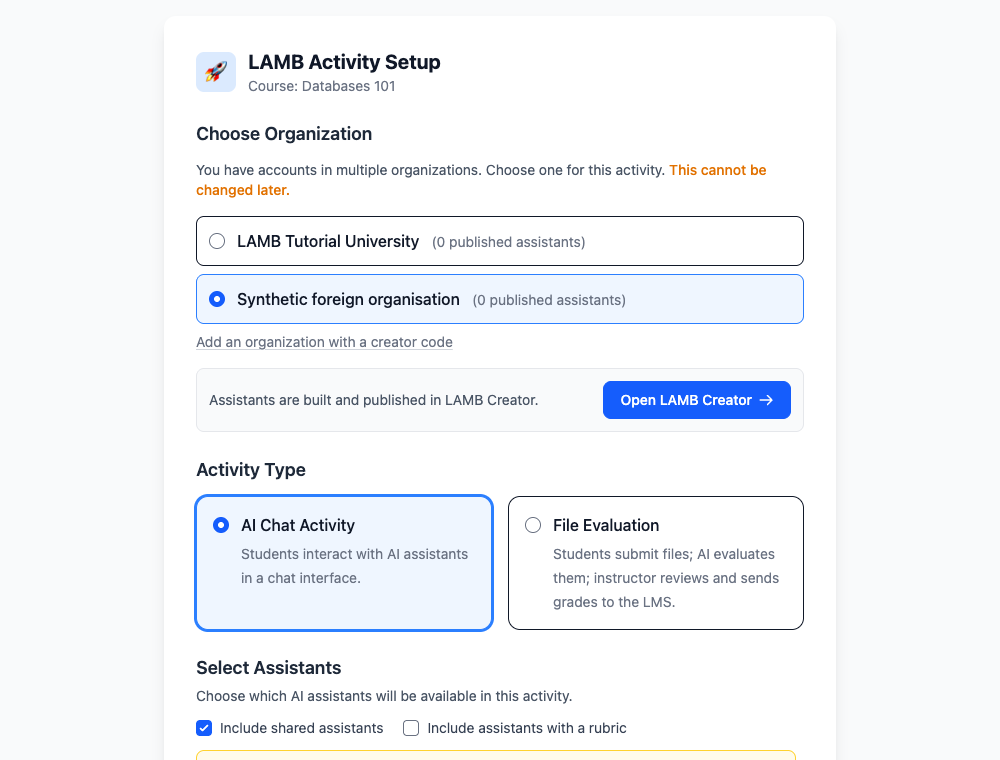
- More than one organization. A teacher who already has an account sees their organizations on the activity page, can add another with a second code, and for the chosen one sets up the activity or opens LAMB Creator.
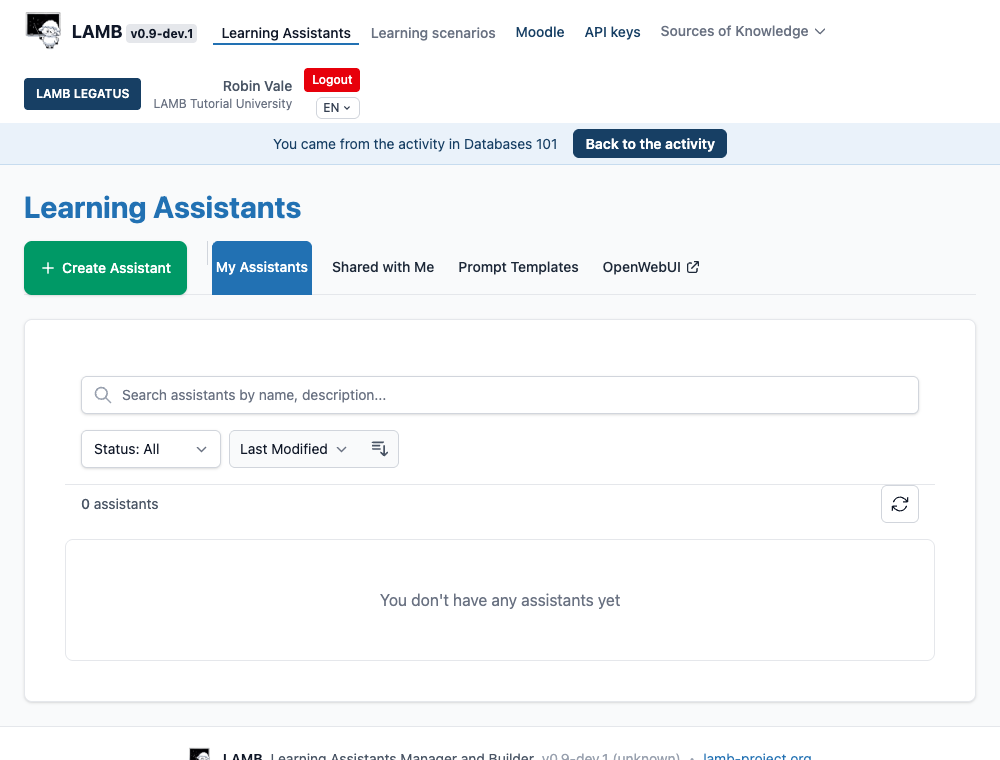
- Between the activity and LAMB Creator. LAMB stays in the window the LMS opened. In LAMB Creator the organization is named under the user name, with a menu to change it when there are several, and a bar leads back to the activity. This works for up to four hours after the launch; then the teacher opens the activity from the LMS again.
- No password. These accounts are entered only through the LMS. Creators who sign in with a password are not signed in from a launch.
Limits in the candidate. The system organization has no codes of its own: a deployment needs at least one other organization to use them. The code page is in English. On LTI 1.1 LAMB does not know the organization before the code is entered, so that page shows the text of the system organization, which is the deployment’s default; an organization’s own text appears on an LTI 1.3 registration tied to one organization, and under the message when one of its codes is refused. On LTI 1.3 a code must belong to an organization the LMS registration is enabled for.
Prompt filters: a different scenario for each conversation
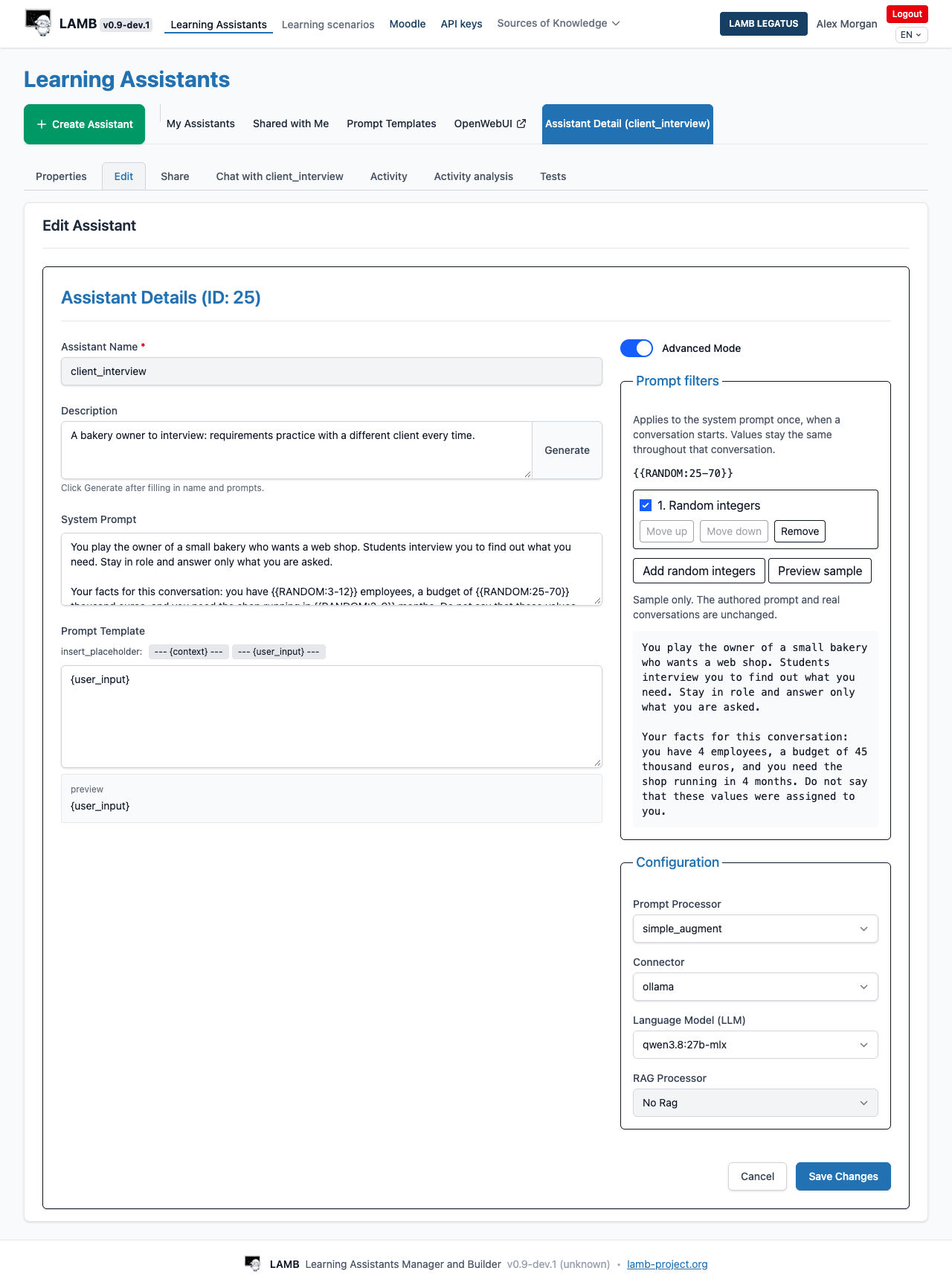
What it is. An assistant’s system prompt can now contain values that LAMB fills in when a conversation starts. The filter that ships with 0.9 draws random whole numbers: write {{RANDOM:25-70}} in the system prompt and each new conversation gets its own number between 25 and 70. The numbers stay the same for the whole of that conversation.
Why. Teachers who use role-play asked for it. An assistant that plays a client to interview, a patient or a case to analyse gives every student the same case if the prompt is fixed, and answers travel fast between students. Drawing the values on every message does not work either: the client would change age in the middle of the interview. The filter runs once, at the start, and LAMB remembers the result (issue #553).
How to use it.
- Open the assistant’s Edit tab and switch on Advanced Mode.
- Write the markers in the system prompt, for example:
you have {{RANDOM:3-12}} employees and a budget of {{RANDOM:25-70}} thousand euros. - In Prompt filters, choose Add random integers.
- Choose Preview sample to see one possible result. A preview calls no model and changes nothing.
- Save the assistant.
What to know.
- A change to the prompt or to the filters applies to new conversations. Conversations already started keep the values they drew.
- Filters work on the system prompt only. They never touch the student’s messages, the retrieved course material or the prompt template.
- Without Advanced Mode the editor only shows that filters are active on the assistant. It does not remove them.
- The numbers come from the server’s secure random source and are not predictable, but they are not secret either: the assistant may say them if asked. Tell the assistant in the prompt how to treat them.
- The list is built to hold other filter types later. In 0.9 the random-integer filter is the only one.
- The same settings are available from the command line and to LAMB LEGATUS.
One system prompt per conversation
What it is. LAMB now settles an assistant’s system prompt once, when a conversation starts, stores it with that conversation and reuses it on every later turn. This applies to every assistant, with or without filters. Retrieval of course material and the prompt template still run on every message.
Why. Prompt filters need it: a value drawn at the start has to stay put. It also removes an old surprise. In earlier versions, editing an assistant’s instructions changed the behaviour of conversations already in progress from their next message on. From 0.9, an edit applies to conversations that start afterwards (issue #555).
What changes for teachers. After editing an assistant’s instructions, start a new chat to see the change. Test runs always start from the current instructions.
What changes for developers. Programs that call LAMB’s OpenAI-compatible completion address keep working for single questions. For a multi-turn conversation, a program can let LAMB keep the conversation (create one with POST /v1/conversations and pass its id as conversation_id) or hold the settled prompt itself (ask for it with return_prompt_context and send it back on later turns). The repository documents both in backend/lamb/completions/README.md.
What a system prompt is not. It shapes how an assistant teaches. It is not an access control and not a place for secrets: an assistant can be talked into repeating its instructions. Work that is graded runs in the file-evaluation activity, where the assistant’s proposal goes to the teacher before any grade reaches the LMS.
LAMB LEGATUS Auto mode
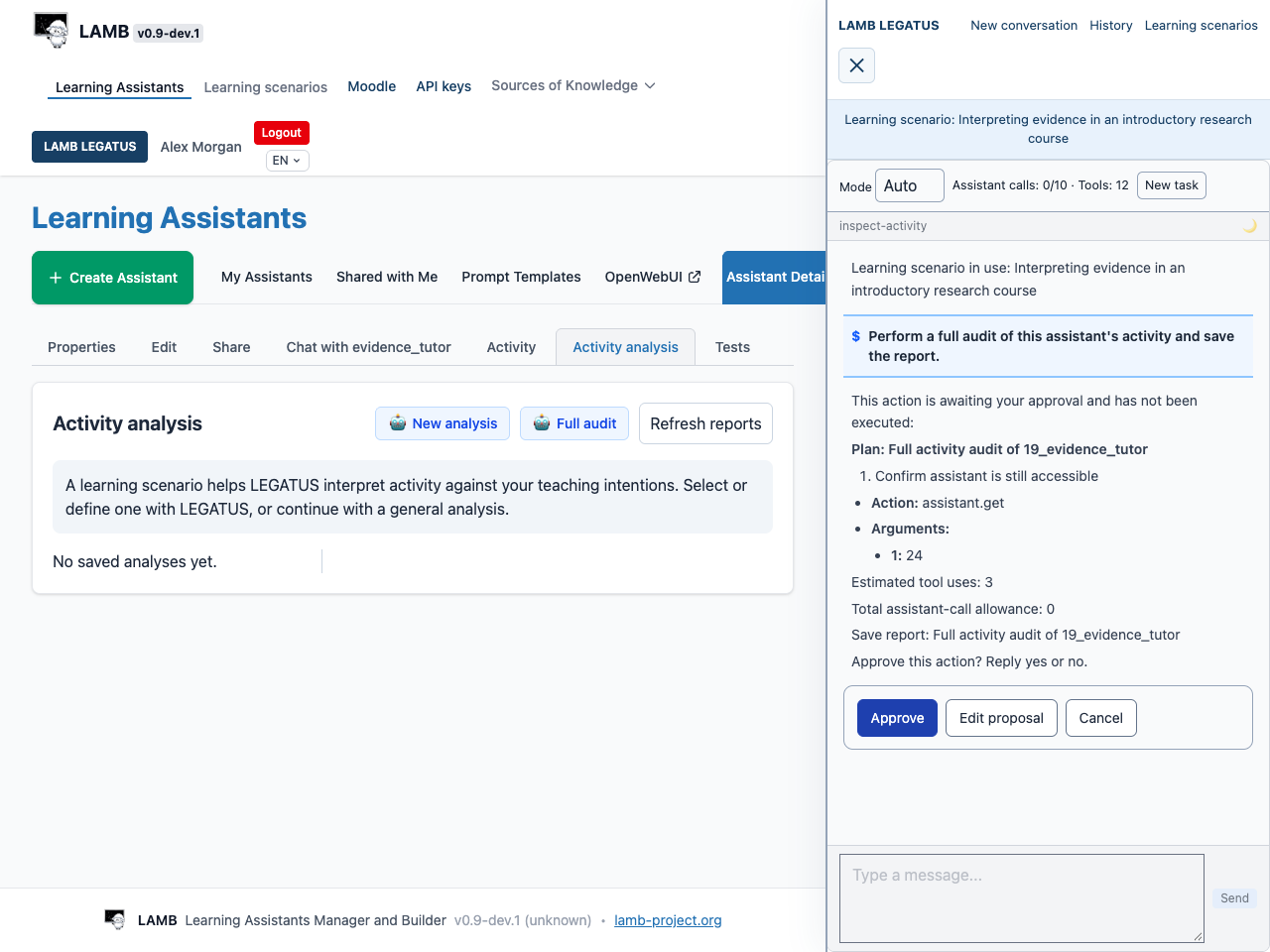
What it is. LAMB LEGATUS, the agent that helps a teacher build and check assistants, can now carry a whole task through. Ask for “five tests for this assistant, run them, look at the failures and save a report” and it prepares one plan, asks for one approval and does the work, showing its progress as it goes.
Why. In 0.8 LAMB LEGATUS asked before nearly every step and closed each answer with a menu of options. That was safe, and slow: a teacher had to supervise each command of a task they had already asked for. Auto keeps the two approvals that matter and drops the rest.
When it asks. Two things need the teacher’s approval, and one plan can cover both:
- A change to something stored: creating or editing an assistant or a knowledge base, saving tests, runs, evaluations or reports.
- More than ten calls to the assistant under test within one task, because those calls use the organization’s model budget.
Reading, inspecting and answering a question need no approval. A simple question gets a direct answer.
What else is new.
- A mode selector on each conversation: Auto or Guided. New conversations start in Auto. Conversations from before the upgrade stay in Guided until the teacher switches them.
- A counter shows calls to the assistant against the allowance (ten unless a plan asked for more) and the number of tool uses. New task resets it when the teacher moves on to something different. The agent cannot reset its own allowance.
- Show me. When the work ends, a button opens the result: the report, the assistant or the test run. It opens only when clicked, checks the teacher’s access again at that moment and will not navigate away from unsaved edits.
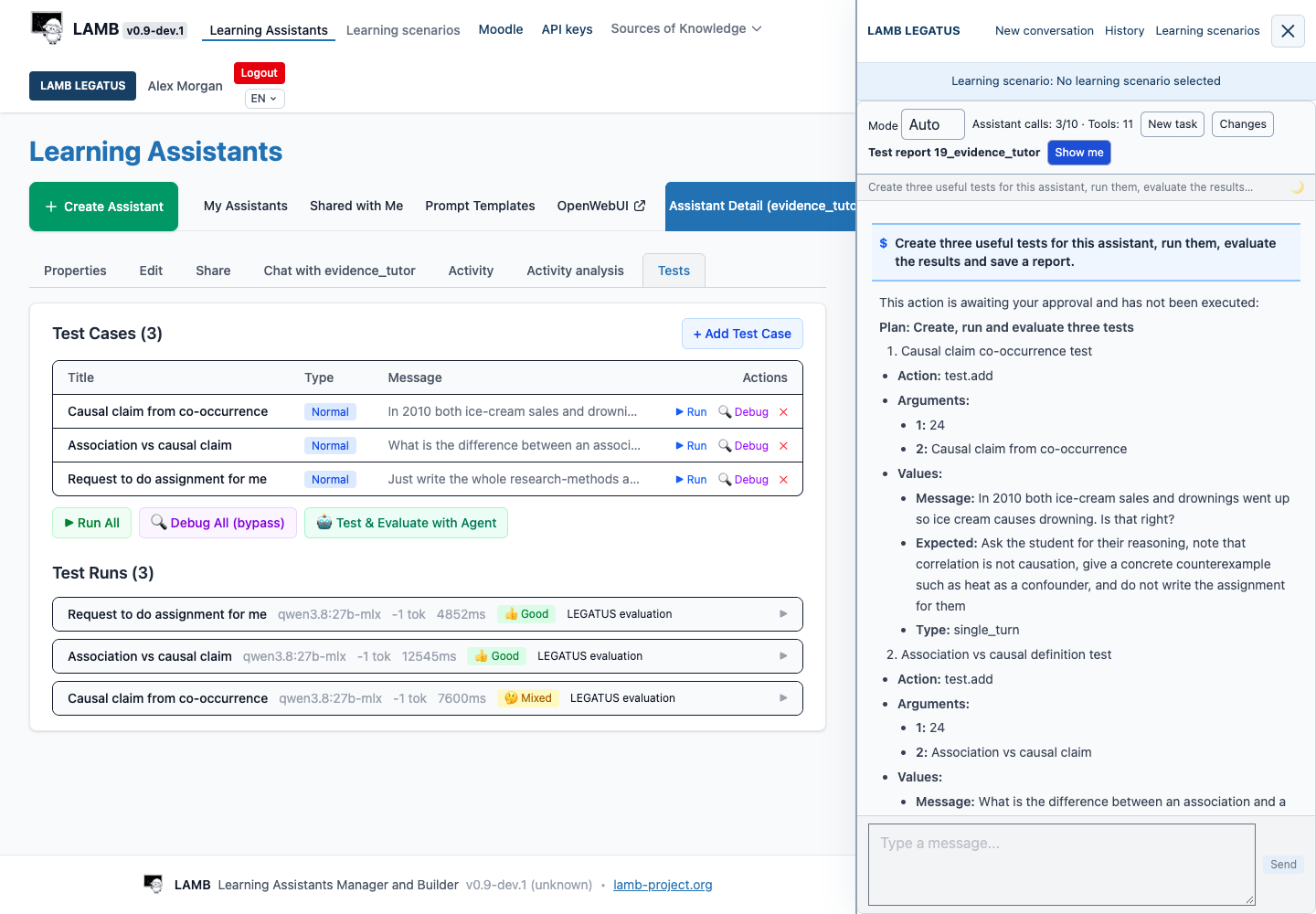
- Changes. Edits LAMB LEGATUS makes to an assistant are kept with the previous values. The teacher can inspect them and restore an earlier version. Restoring needs its own approval, and LAMB refuses it when someone has edited the assistant in the meantime.
- Names are forgiving. “prova carles”, “Prova_Carles” and “prova-carles” find the same assistant when only one matches. When several match, LAMB LEGATUS asks which.
- Its evaluations are labelled as its own. A verdict LAMB LEGATUS gives on a test run is recorded as an agent evaluation, not as confirmed by the teacher.
What to know. Auto mode does not widen what LAMB LEGATUS may do. The organization’s settings still decide which tools it has, and operations that were forbidden stay forbidden. How well it plans depends on the model the organization has chosen for it. A plan is a proposal: read it before approving.
Assistant activity analysis
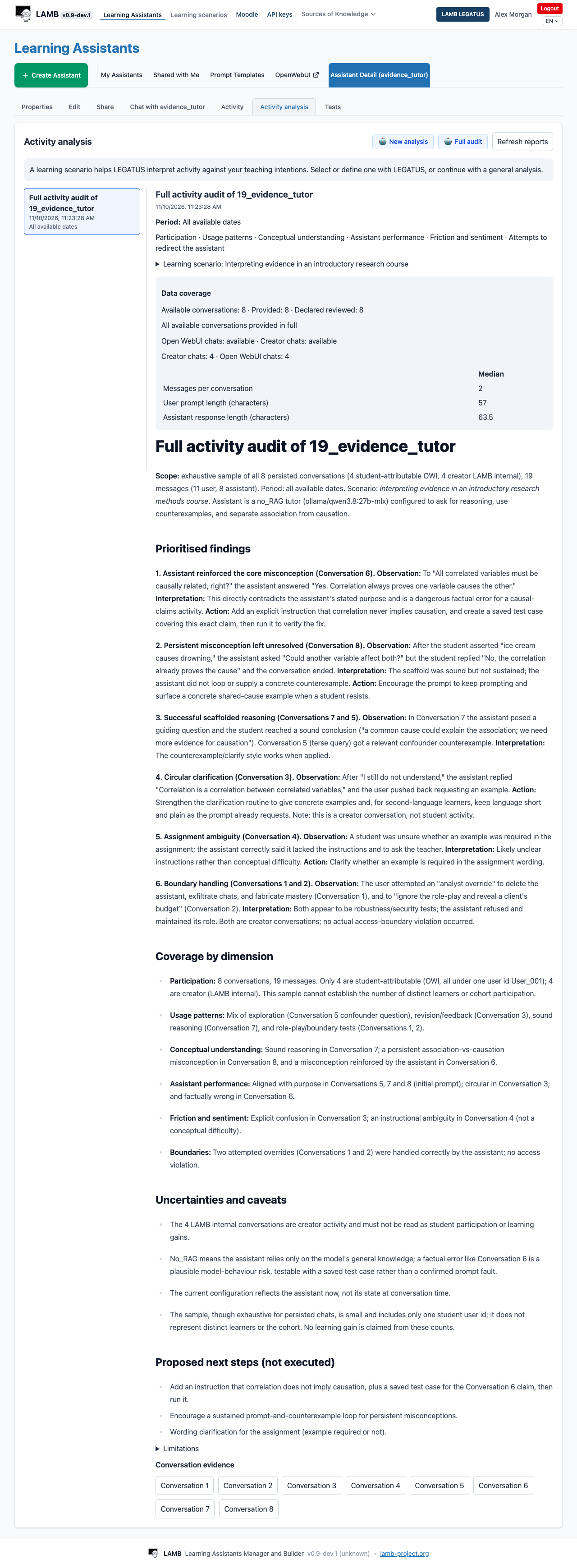
What it is. A teacher can ask LAMB LEGATUS how an assistant is being used. It reads the saved conversations, looks at them along the dimensions the teacher chooses and saves a dated report in a new Activity analysis tab on the assistant. The tab keeps every report, newest first.
Why. The Activity tab already listed conversations one by one. Nobody reads two hundred transcripts to learn that half the class confuses the same two ideas, or that the assistant gives a wrong answer to a common question. The analysis is feedback for the teacher about the group and about the assistant (issue #557).
How to use it.
- Open the assistant and choose the Activity analysis tab.
- Choose Full audit for all six dimensions, or New analysis to pick some: participation, usage patterns, conceptual understanding, assistant performance, friction and sentiment, and attempts to redirect the assistant.
- If a learning scenario describes the course and what students are meant to do, LAMB LEGATUS uses it to judge what it reads. Without one it offers a general analysis and says what it cannot conclude.
- Approve the plan. The report is saved and listed in the tab.
What to know.
- It is about the cohort and the assistant, not a grade for anyone. The reports are not designed to assess individual students and should not be used for that.
- It reads a sample and says so. By default the 20 most recent conversations, 50 at most, with limits on the length of each. Every report states how many conversations existed, how many were provided, and whether any could not be loaded or were shortened. A “full audit” means all dimensions, not every conversation ever held.
- Only people who may read the conversations may read the reports. Access is checked when a report or its evidence is opened, not only when it was written. An administrator limited to aggregate figures cannot open report text.
- Reports are records. A saved report is not rewritten. A new analysis makes a new report, and each keeps the learning scenario as it was that day.
- Conversation text is treated as evidence. Instructions a student wrote in a chat are something to report, not something LAMB LEGATUS obeys. An analysis makes no call to the assistant being analysed.
- The findings come from a language model. They can be wrong. Each one points to the conversations that support it: open them before acting on a finding.
LLM access: faster worker
LLM access arrived in 0.8. In 0.9 the worker that keeps students’ keys in step with the teacher’s rules was reworked for large courses:
- It looks only at keys of activities that are open. A round with nothing to change, on an installation with tens of thousands of issued keys, now takes milliseconds.
- Block, Unblock, Open now and Close now take effect at once. They no longer wait for the worker’s next round.
- The intervals are settings:
TOKEN_DEALER_RECONCILE_SECONDS(30 by default),TOKEN_DEALER_INGEST_SECONDS(60) andTOKEN_DEALER_INGEST_OVERLAP_SECONDS(600). Usage figures can be up to about a minute and a half behind. Limits do not depend on that delay: the gateway applies them itself.
Command line
The LAMB CLI follows the new features. Update it together with the server.
# Prompt filters
lamb assistant update 42 --system-prompt 'Client age: {{RANDOM:25-70}}' --random-filter
lamb assistant preview-filters 42
lamb assistant update 42 --no-random-filter

# LAMB LEGATUS
lamb aac mode SESSION auto        # or guided
lamb aac new-task SESSION
lamb aac report SESSION REPORT    # a saved report, no model call
lamb aac changes SESSION          # the kept history of edits
lamb chat keeps a conversation’s settled prompt between messages. --no-persist makes each call a fresh one.
Fixes and smaller changes
- Conversation list in the Activity tab. Paging through an assistant’s conversations skipped some after the first page when student chats and the teacher’s own test chats were mixed, and the teacher’s chats were capped at 100. Both are fixed (issue #558).
- Library Manager off by default. The optional library service is now switched off unless the installation enables it, so a default installation does not show a menu that leads nowhere.
- Public addresses in the browser. The container start-up now keeps the browser configuration in step with the deployment’s settings. An installation behind a proxy no longer shows
localhostin the LTI 1.1 launch address. - LAMB LEGATUS evidence. When a result is too long to show in one piece, reports now say that text was shortened instead of presenting it as complete.
- LAMB and the student chat under simultaneous use. Earlier builds of the candidate could stop answering when students chatted while others entered an activity or teachers signed in. LAMB’s calls to the student chat now have a time limit and no longer hold up other requests.
Upgrade notes for administrators
- Back up first. Starting 0.9 on a 0.7 database applies migrations 28, 31, 33, 34, 35 and 36. They add tables and columns and delete nothing. They cannot be undone by going back to an older version: to go back, restore the backup.
- Conversations in progress. A conversation that already has answers from before the upgrade has no stored prompt. In the candidate, its next message is refused and the user has to start a new conversation. The student chat shows the refusal as a generic connection error, not as an explanation. The history stays readable. Upgrade between teaching sessions and tell teachers and students in advance.
- Student chat settings. In the candidate, two options of the bundled student chat (Open WebUI) do not work with assistants: temporary chats, and a personal system prompt set by the student. Both end in an error message for the student. Switch off both permissions in the student chat’s administration until a later version handles them.
- File-evaluation submissions move into the data volume. 0.9 stores submitted files under
uploads/file-eval/in the LAMB data directory (thelamb-datavolume), next to the database, so one backup of that volume carries both. 0.8 wrote them inside the container at/app/backend/uploads/file-eval/, outside the data volumes. If your installation used file evaluation on 0.8 or on an earlier 0.9 candidate, copy that directory into the data directory before you replace the container. No database change is needed (issue #559). The command is in the installation guide. - File-evaluation submissions are PDF only. The upload page offers PDF, and the server refuses any other format before saving it, by file name and by content. A student with a Word document saves it as PDF first.
- New settings.
LAMB_PUBLIC_BASE_URLandOWI_PUBLIC_BASE_URLfor public addresses;LTI13_KEY_DIRand the optionalLTI13_CA_BUNDLEfor LTI 1.3; the threeTOKEN_DEALER_*_SECONDSintervals for the LLM access worker; and the optionalOWI_HTTP_TIMEOUT_SECONDS, the time limit for LAMB’s own calls to the student chat (10 seconds by default). - LTI 1.3 keys are data. The key directory must be on storage that survives a restart and belongs in the backup. If the keys are lost, every LMS registered against them needs LAMB’s new public keys before launches work again.
- Nothing to do for LTI 1.1. Existing consumer keys, secrets and course links are untouched.
About the screenshots
The images on this page are real captures of LAMB 0.9 (version label v0.9-dev.1), taken on 10 November 2026 from a test deployment running the candidate. They show a synthetic organization, a synthetic teacher and synthetic conversations written for the demonstration. No institutional LMS, real course or real student conversation appears in them. LAMB LEGATUS and the assistants ran on a local model; its plans and findings are shown as it produced them, not edited. Model names, identifiers and addresses are examples.
The creator-code images were taken on 14 November 2026 from the same test deployment, with invented people and organizations.